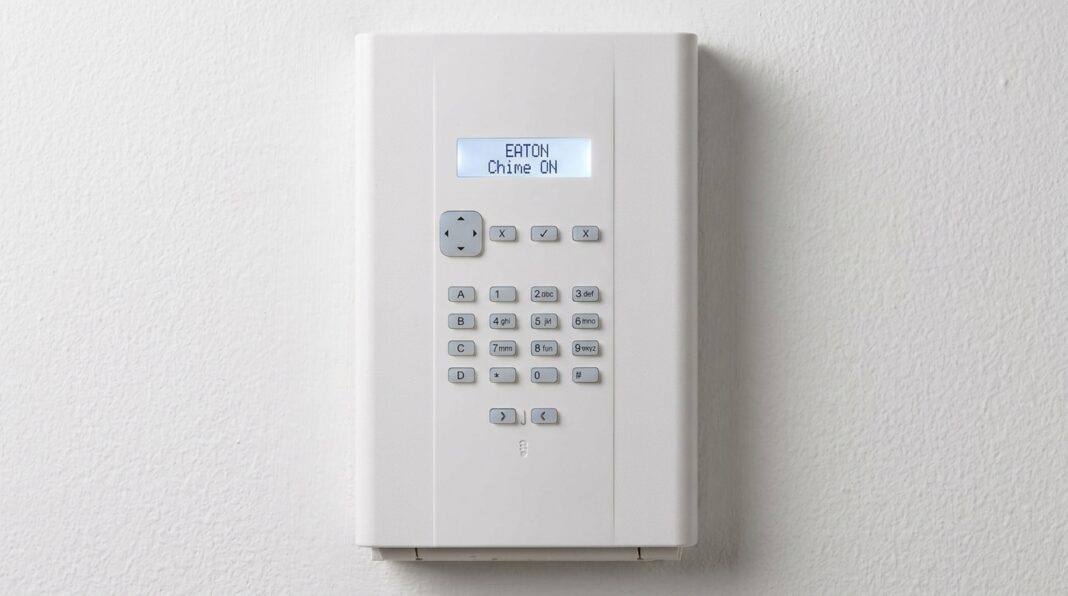
How to Turn Chime Facility On/Off Eaton L-ON Intruder Alarm (Introduction)
Maybe you have noticed this before – that subtle beep or chime your alarm system makes every time a door is opened or someone moves through a monitored area. It’s not an alarm going off. No one is breaking in. It’s the chime feature of your Eaton L-ON intruder alarm system, working just as it should.
At times, it can be very handy. At others, it might get on your nerves.
Imagine you have a baby sleeping, so the last thing you would want is a series of beeps every time someone goes into the kitchen. Or, maybe your system has been quiet for years and you have just remembered that you want that soft chime notification again – after all your front door is being opened regularly during the day and you want to be informed about it.
Whatever the case, this tutorial will help you understand how to turn the chime facility on and off on your Eaton L-ON intruder alarm, step by step—no technical language. No uncertainties. Simply straightforward instructions that you can follow, whether you are a new alarm system user or a seasoned security system owner.
What Is the Chime Facility on an Eaton L-ON Alarm?
Even before talking about steps, it is important to know exactly what the chime feature is, as it is very different from the alarm.
The chime feature is essentially a notification; however, it is not as obvious as an alarm notification. Upon turning on the feature, the system will emit a short sound signal when any designated zone is triggered (for example, when the door opens or the PIR motion detector activates) while the system is off (disarmed). It will not ring the siren. It will not make a call to a monitoring center. It will just chime – like a doorbell to your detector zones.
Eaton’s i-on series security systems support chime as a standard user-accessible feature across the L-ON range and related panels. According to official Eaton documentation, even a Normal User (not just a master user) can switch the chime function on and off directly from the keypad. It means you don’t need an engineer or administrator to help you do this.
This makes Chime one of the few settings genuinely accessible to everyday users.
Who Can Toggle the Chime on an Eaton L-ON System?
Understanding your user level is important before you start pressing buttons.
| User Type | Can Toggle Chime? | Can Access User Menu? |
|---|---|---|
| Master User (U01) | ✅ Yes | ✅ Full access |
| Normal User | ✅ Yes | ✅ Limited access |
| Guard | ❌ No | ❌ No menu access |
| Set Only | ❌ No | ❌ No menu access |
| Duress Code User | ❌ No | ❌ No menu access |
Normal users have limited access to the menu. They can change their own access code, switch the chime function on and off. They can also operate any outputs the installer has made available.
So if you’re a regular user in your household or small business, you’re all good. You have exactly the access level needed to control the chime yourself.
How to Turn the Chime On/Off on an Eaton L-ON Intruder Alarm (Keypad Method)
This is the main method that works across the Eaton L-ON range and related panels. Including the 9651PD and i-on series panels that share the same user interface architecture.
Important: The system must be unset (disarmed) before you attempt any of these steps.
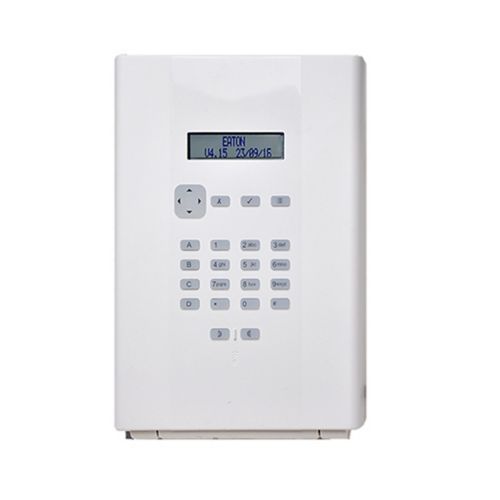
Step-by-Step Instructions
Step 1: Make sure the system is unset
Check your keypad display. It should show the standby screen. If the system is set/armed, you’ll need to unset it first by entering your access code.
Step 2: Enter your access code at the keypad
Key in your 4-digit access code as you normally would when unsetting the system.
Step 3: Press key 7
Press 7 to toggle the chime on and off. This is the dedicated shortcut for the chime function. The system will immediately toggle between chime-on and chime-off states.
Step 4: Confirm the change
The keypad display or sounder will typically give a brief acknowledgment tone. Trigger a chime-enabled zone (such as opening a monitored door) to verify whether the chime is now active or inactive.
Expert Tip: On most Eaton L-ON keypads, pressing your access code followed immediately by key 7 activates the chime toggle. You do not need to navigate through a full menu — it’s a direct shortcut designed for quick access.
That’s the fastest method. But there’s also a menu-based method available through the User Menu, which is especially useful on i-on series panels with a display screen.
How to Toggle Chime Via the User Menu (i-on Series Display Keypads)
If your Eaton L-ON or i-on series keypad has a two-line display, you can also navigate to the chime setting via the menu interface. This method is particularly useful if you want visual confirmation of the chime state before changing it.
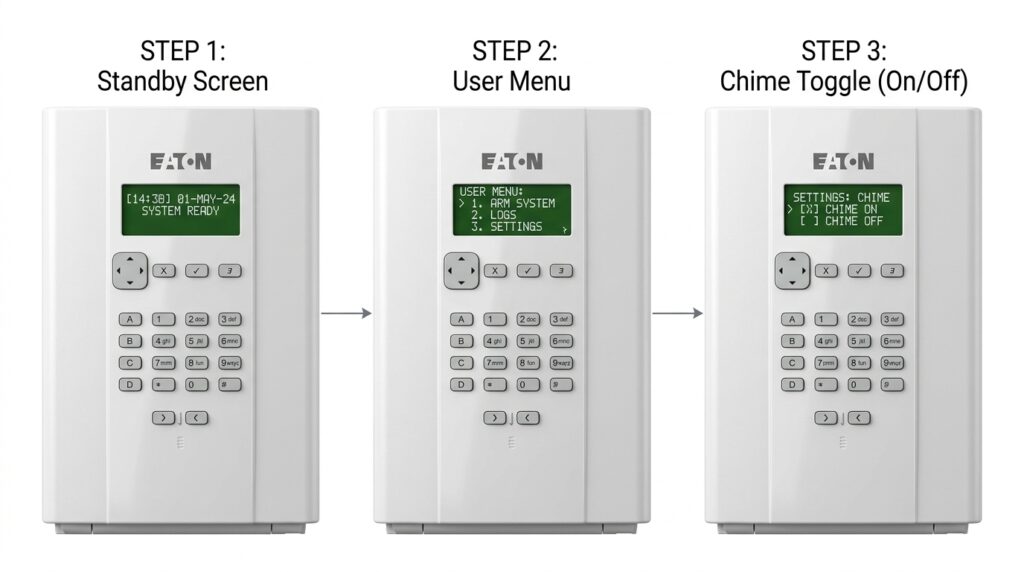
Menu Navigation Steps
- Start at the standby screen. Make sure the system is unset and idle.
- Press the Menu button (often labeled with a padlock or navigation icon, depending on your keypad model), then enter your access code.
- Use the navigation arrows (up/down or left/right, depending on keypad) to scroll through the available menu options.
- Locate “Chime” in the list of options.
- Press the confirm/select button (often labeled ✓ or OK) to toggle the chime on or off.
- The display will confirm the new state — either “Chime On” or “Chime Off.”
Here, I suggest that you make sure the display shows the standby screen. After that, press the navigation arrows to scroll through the available options. Then press the confirm button to select and access an option. If no keys are pressed for 60 seconds, the display returns to the standby screen.
Note: If you press no keys for 60 seconds during menu navigation, the keypad will automatically return to standby. This is a security feature. Simply start again if it times out.
What Happens When Chime Is Enabled?
When chime is switched on, your Eaton L-ON alarm system monitors designated zones and sounds a brief internal tone each time one of those zones is triggered — but only while the system is unset.
Here’s what you can expect:
- A short beep or chime tone from the keypad or internal sounder when a door, window, or PIR zone is activated.
- No external siren — the chime is internal only. Your neighbors won’t hear it.
- No alarm condition is triggered — this is purely informational.
- Only chime-enabled zones will produce the tone. Your installer determines which zones are set to chime-capable during the original installation and programming phase.
The chime function generates a chime whenever a zone is triggered, while switching it off stops all chiming.
This makes chime particularly popular in:
- Retail shops (chime when a customer enters)
- Home offices (notification when someone enters a specific room)
- Households with vulnerable occupants who benefit from gentle zone notifications
When Would You Turn Chime Off?
Chime is incredibly helpful — but there are plenty of situations where you’ll want to disable it temporarily or permanently.

Common reasons to turn the chime off:
- Sleeping children or light sleepers — repeated chime tones at night can be disruptive.
- Frequent foot traffic in a specific zone — if a high-traffic door keeps triggering the chime, it becomes background noise fast.
- Testing or maintenance — when an engineer or installer is performing a walk-test, chime can interfere.
- Temporary situations — parties, gatherings, or events where constant beeping would be annoying or confusing for guests.
And reasons to turn it back on:
- Security awareness, when you want to know exactly when a zone is activated.
- Child or pet monitoring — an informal way to know when certain doors or rooms are accessed.
- Shop environments — where chime effectively serves as a door entry notification.
Chime vs. Alarm: Understanding the Difference
One of the most common points of confusion for new Eaton L-ON users is the difference between the chime and the actual alarm.
| Feature | Chime | Alarm |
|---|---|---|
| Triggered by | Zone detector activity (unset system) | Zone detector activity (set system) |
| Sound | Short internal tone | Full external siren |
| Alerts monitoring centre | ❌ No | ✅ Yes (if connected) |
| User-controlled | ✅ On/off via keypad | ❌ Set by system state |
| Runs 24/7 | ✅ Only when the system is set | ✅ Only when system is set |
Think of chime as the polite notification mode — it’s the alarm system’s way of whispering rather than shouting. The siren is the shout. Chime is just a whisper that says: “Hey, zone 3 just activated.”
Chime and Zone Configuration: What Your Installer Controls
There’s one important limitation to keep in mind. Not every zone will chime just because you’ve enabled the chime facility.
During the original configuration of your system, your alarm installer determines which zones are programmed to be chime-capable. If a zone hasn’t been set up for chime during installation, toggling chime on at the keypad won’t cause that zone to produce a tone — even if the feature is active.
If you find that the chime is enabled but no zones are sounding when doors or detectors are activated, this is likely the reason. In this case, contact your alarm installer and ask them to review which zones have been designated as chime zones during programming.
According to Eaton’s official security product documentation, the installer manages zone-level attributes during the initial setup phase — chime eligibility for individual zones is one such installer-controlled setting.
Expert Tips: Getting the Most From Your Eaton L-ON Chime Feature
Here are some practical recommendations from experienced alarm users and professionals:
1. Use Chime as a doorbell substitute for internal zones.
If your back door or garage is protected by a zone, enabling chime gives you an instant notification whenever that entry point is opened. You don’t need a separate doorbell system.
2. Toggle chime quickly using the shortcut.
Rather than navigating through the full menu every time, memorize the direct shortcut: access code + key 7. It takes less than five seconds.
3. Check which zones are chime-enabled before assuming the feature is broken.
If you’ve enabled chime and hear nothing when opening doors, talk to your installer. They can tell you which zones are chime-capable on your specific installation.
4. Consider your household’s schedule.
Many users leave Chime enabled during the day and switch it off at night using the keypad shortcut. This gives you zone awareness during waking hours without disrupting sleep.
5. Never confuse chime with an alarm state.
If your property is alarmed and a zone is triggered, you’ll hear the full siren — not a chime. Chime only operates when the system is fully unset.
Troubleshooting: Chime Not Working as Expected?
Chime is toggled on, but no sound is produced.
- Confirm the system is unset (disarmed). Chime only works when the system is in standby.
- Ask your installer whether the relevant zones have been programmed as chime zones.
- Check whether the keypad’s internal sounder is functioning by performing a sounder test. Enter your access code, then press 8 to start the sounder and strobe test.
The keypad won’t let you access key 7 / chime toggle
- Confirm your user type. Guard, Set Only, and Duress Code users cannot access the chime toggle. Only Master Users and Normal Users have this access.
- Make sure you’re entering a valid access code before pressing key 7. The shortcut requires prior code entry.
Chime keeps turning itself off
- This shouldn’t happen automatically. Check whether another user in the system is toggling it off. The system can store up to 50 different user access codes, so multiple users may be adjusting settings without realizing it.
Chime sounds during alarm testing
- This is normal behavior if you’re conducting a walk test. The walk test function generates a chime every time a zone is triggered during the test procedure.
Also Read: How to Create a Custom New Command Key in mpc-hc64.exe
Using the Eaton SecureConnect App for Remote Monitoring
If your Eaton L-ON system is connected to Eaton SecureConnect™, you can monitor your system status remotely via the app. While chime toggling itself is performed at the physical keypad, the SecureConnect app gives you visibility over zone status, system set/unset state, and event logs — making it a useful companion tool for understanding what your chime is reacting to.
The SecureConnect app lets you monitor and control your alarm system over the internet from your Android or iOS phone or tablet. The main app page shows Status, Zones, Log, and Outputs tabs.
This can be especially useful if you want to confirm whether a specific zone triggered a chime tone during a particular time of day — just check the log inside the app.
Pros and Cons of Using the Chime Facility
| Pros | Cons |
|---|---|
| Acts as an informal door notification in shops/homes | Can become repetitive in high-traffic areas |
| No engineering visit needed — user-adjustable | Not all zones may be chime-enabled by default |
| Requires a valid access code to change | Can be disruptive if toggled on at night |
| Simple toggle via shortcut key — takes seconds | Chime-capable zones must be pre-configured by the installer |
| Works on all compatible user types (Normal + Master) | Chime-capable zones must be pre-configured by installer |
Frequently Asked Questions
1. What is the chime facility on an Eaton L-ON intruder alarm?
The chime feature causes your Eaton L-ON alarm system to produce a brief audible tone when a designated zone is triggered while the system is unset (disarmed). It’s commonly used to signal when doors or motion zones are activated without triggering the full alarm.
2. How do I turn the chime on or off on my Eaton L-ON alarm?
Enter your 4-digit access code at the keypad, then press key 7. This toggles the chime facility on and off. You can also access the chime setting through the User Menu by pressing the menu button, entering your code, and scrolling to the Chime option.
3. Why is my chime on, but I can’t hear any tone when a door opens?
This is usually because the relevant zone hasn’t been programmed as a chime zone by your installer. Even with chime enabled, only zones configured for chime will produce a tone. Contact your alarm installer to check and update the zone programming.
4. Can any user toggle the chime on an Eaton L-ON alarm?
No. Only Master Users and Normal Users can access the chime toggle. Guard users, Set Only users, and Duress Code users do not have access to the User Menu and cannot change the chime setting.
5. Will enabling Chime set off the alarm or alert my monitoring center?
No. Chime is completely separate from the alarm function. It produces only a brief internal tone and does not trigger the external siren or send any notification to an Alarm Receiving Center (ARC). It only operates when the system is fully unset.
Conclusion
The chime capability on your Eaton L-ON intruder alarm is one of those quiet, underrated features that you will definitely find very useful once you start operating it deliberately. So, if you want a little alert every time your front door opens, or you want complete silence during some parts of the day, then you are now aware of how to control the chime — right from your keypad, within seconds.
The shortcut is very straightforward: access code + key 7. That’s all. No engineer needed. No necessity to dive into the menu (however, if you want visual confirmation, the menu way is also there).
If you face any problems — zones not chiming when expected, keypad access issues, or chime toggling unexpectedly — refer to the troubleshooting section above as your initial reference point. If the problem continues, your alarm installer is the appropriate person to call.
For official Eaton documentation and further technical support, visit Eaton’s Security Products page or refer to your system’s user guide available from your installer.
This article is intended as a general user guide based on publicly available Eaton alarm system documentation. Always refer to the specific user guide provided with your installed system or consult your alarm installer for configuration advice tailored to your setup.
Also Read: How to Make a Realm on Java 1.21.10 with Datapacks