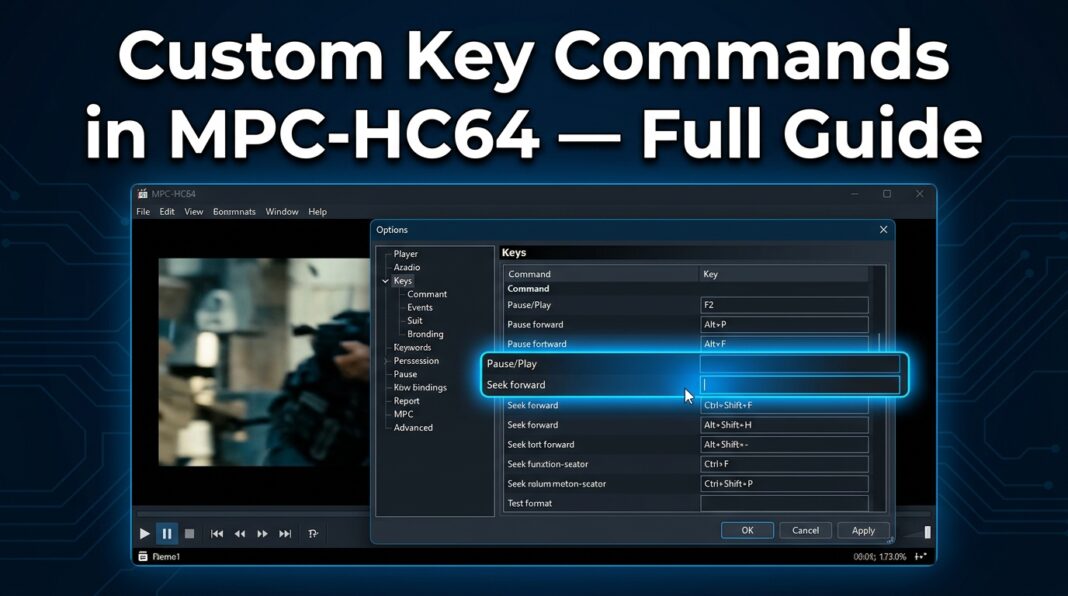
How to Create a Custom New Command Key in mpc-hc64.exe
Finally, you’ve moved on to using MPC-HC — the legendary open-source media player — and now you want it to behave exactly the way you want it. Perhaps you desire a single keypress to jump forward 30 seconds, or one button to toggle subtitles without opening the menu. Totally reasonable. Totally achievable.
MPC-HC64 (the 64-bit version of Media Player Classic – Home Cinema) boasts one of the most flexible key-binding systems of any free media player. Unfortunately, the majority of that features and capabilities are hidden behind menus which are not typically explored by newcomers.
In this tutorial, you will discover the step-by-step process of how to make a brand new custom command key in mpc-hc64.exe — starting from locating the correct settings panel, through command mapping and conflict resolution till exporting your configuration for safety.
No unnecessary details. Only real steps.
What Is MPC-HC64 and Why Customize Keys?
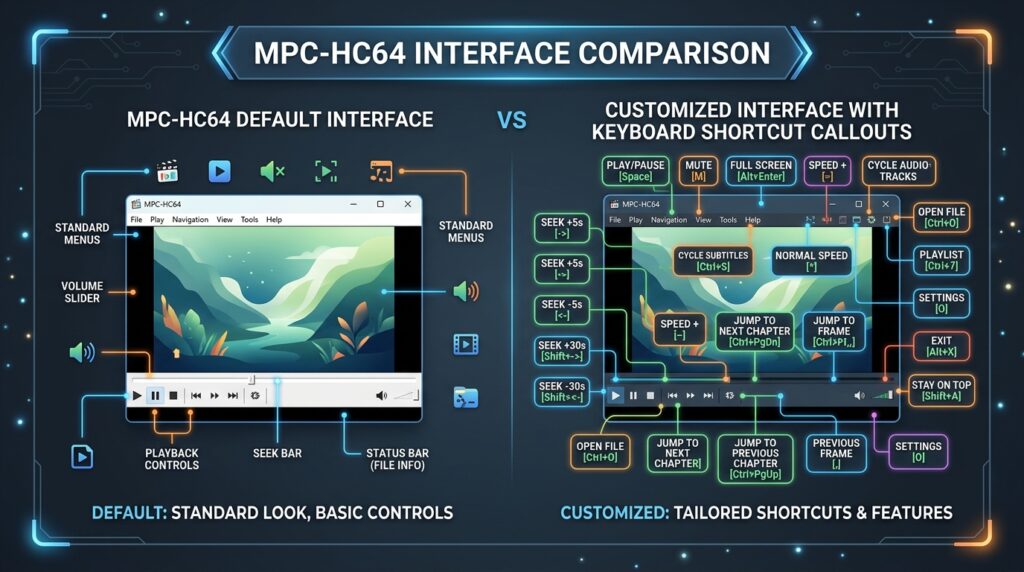
MPC-HC (Media Player Classic – Home Cinema) is a free, open-source Windows media player that’s been a favorite among power users for over a decade. The 64-bit version — mpc-hc64.exe — is the modern, actively maintained build and the one you should be using on any 64-bit Windows system.
What makes it stand out is its lightweight footprint, codec flexibility, and deep customization options — especially for keyboard shortcuts.
Here’s why remapping keys actually matters:
- Speed: Reach any function without lifting your hand from the keyboard
- Workflow: Build a control scheme that matches your brain, not a developer’s default
- Accessibility: Make controls easier to reach for physical comfort
- Efficiency: Reduce repetitive clicks during long editing or review sessions
The default keybindings in MPC-HC64 cover the basics, but they don’t cover everything — and some defaults may conflict with other software you’re running.
Understanding How Key Bindings Work in MPC-HC64
Before jumping into the steps, let’s get the mental model right.
MPC-HC64 assigns commands to keys. A command is an internal action — things like “Play/Pause,” “Jump forward 5 seconds,” “Toggle fullscreen,” or “Cycle audio track.” A key is whatever keyboard input you want to trigger that command.
The relationship is one command → one or more keys, but each key can only trigger one command at a time. If you assign a key that’s already in use, you’ll be warned — or the existing binding will be overwritten silently, depending on the version.
MPC-HC64 also supports mouse button bindings and remote control mappings through the same interface — useful to know as you explore.
Step-by-Step: How to Create a Custom New Command Key in MPC-HC64
Follow these steps precisely. This works for the current maintained release of mpc-hc64 by clsid2.
Step 1 — Open MPC-HC64
Launch mpc-hc64.exe. If you downloaded it from the official GitHub releases page, your file may sit in a folder like C:\Program Files\MPC-HC\ or wherever you extracted it.
You don’t need to have a file playing to configure keys — the settings panel is always accessible.
Step 2 — Navigate to the Options Menu
Click on View in the top menu bar, then select Options.
Alternatively, press the default shortcut: O key (that’s the letter O, not zero).
The Options window will open — this is MPC-HC64’s main configuration hub.
Step 3 — Go to Player → Keys
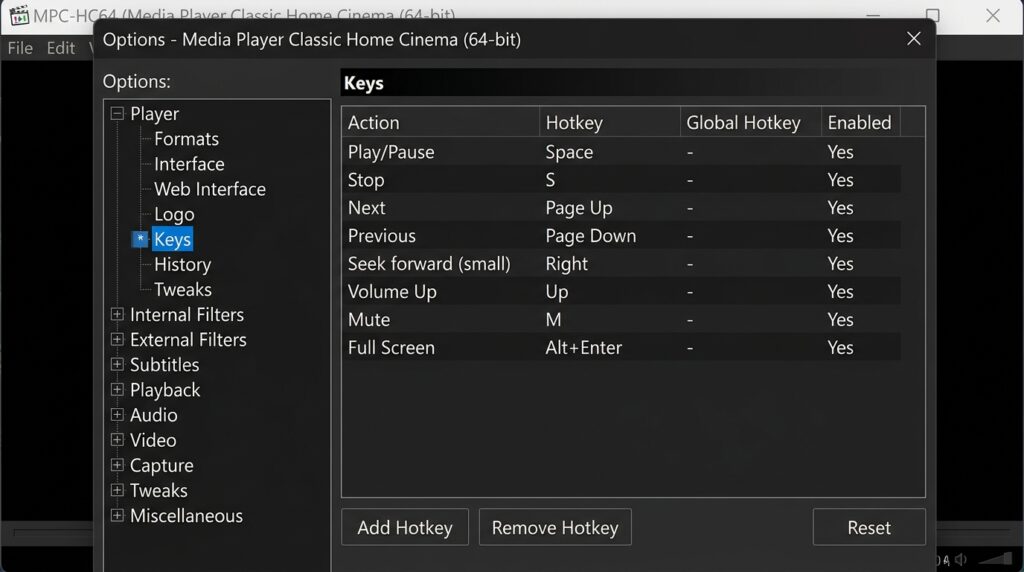
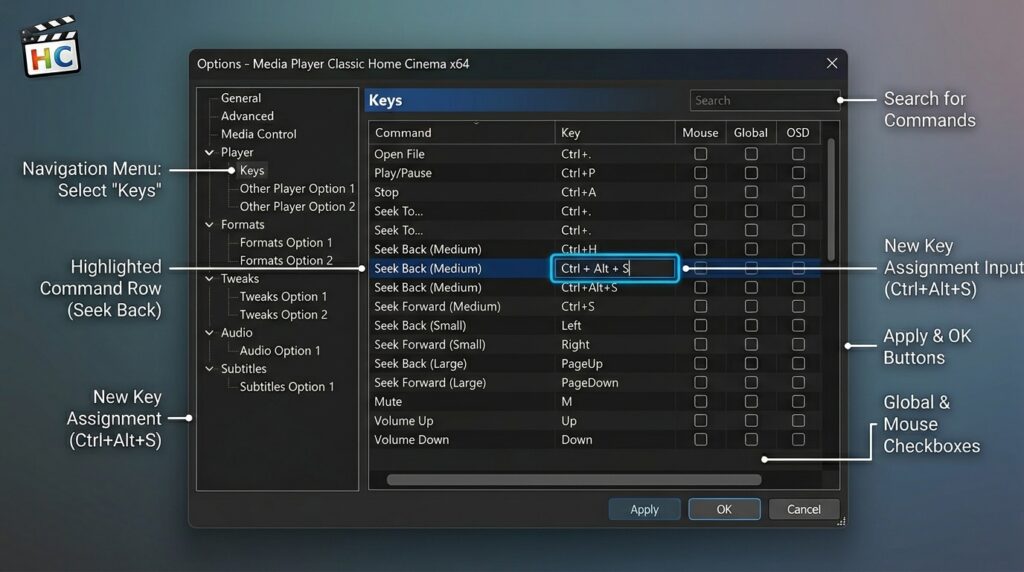
In the left sidebar of the Options window, you’ll see a tree structure. Expand Player, then click on Keys.
This reveals the full key binding table — a list of every available command in MPC-HC64 and whatever keyboard shortcut is currently assigned to each one.
The table has three columns:
| Column | What It Shows |
|---|---|
| Command | The internal action name (e.g., “Play/Pause”) |
| Key | The currently assigned keyboard shortcut |
| Mouse | Any mouse button or scroll assignment |
Scroll through this list, and you’ll see hundreds of bindable commands — many of them unmapped by default.
Step 4 — Find the Command You Want to Map
Use the scrollbar to browse, or — in newer builds — type in the search/filter box above the list if available.
Common commands worth custom-mapping:
Play/Pause— default is Space, but some users prefer a media keyJump Forward (large step)— handy for skipping introsJump Backward (large step)— for rewinding scenesNext Subtitle/Previous Subtitle— useful for subtitle reviewIncrease Volume/Decrease VolumeToggle Subtitles— on/off toggle for subsCycle Audio— switch between audio tracksScreenshot— capture a frame
Click on the row for the command you want to customize.
Step 5 — Assign Your Custom Key
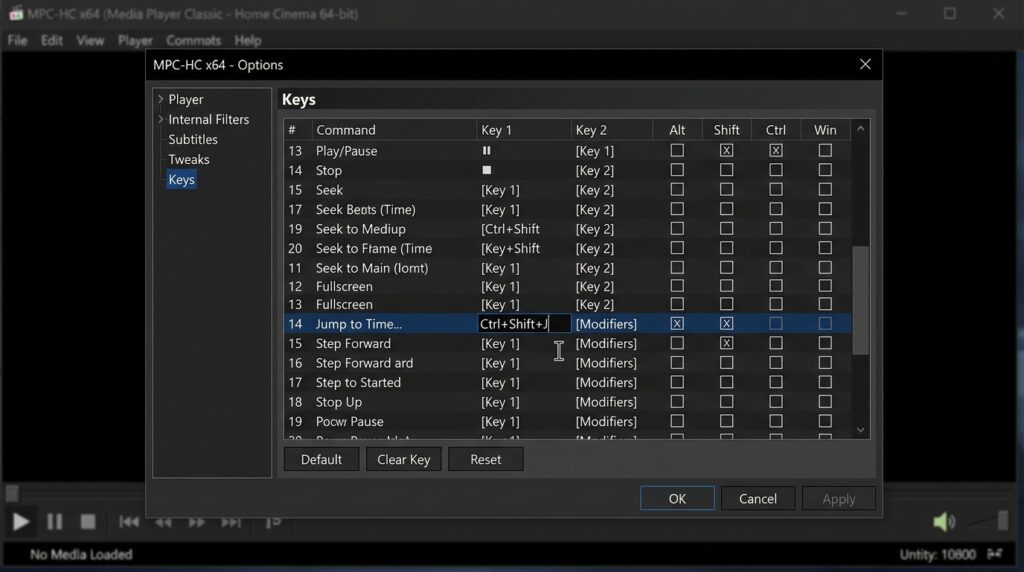
Once you’ve selected the command row:
- Click inside the Key input field on the right side of the window (it may appear below the table or inline, depending on your version)
- Press the key or key combination you want to assign — for example,
Ctrl + Shift + J - MPC-HC64 will display the key you pressed in the field
If the key is already bound to another command, the player will usually display a warning like: “This key is already used for [Command Name]. Do you want to reassign it?”
Choose Yes to reassign, or pick a different key.
Tips for choosing keys:
- Use
Ctrl,Shift, orAltcombinations to avoid clashing with single-key defaults - Avoid
Alt + F4(closes the application) or system-reserved shortcuts - Function keys (
F1–F12) are mostly free in MPC-HC64 and easy to reach
Step 6 — Apply and Save
After assigning the key, click Apply and then OK at the bottom of the Options window.
Your new custom key command is now live. Test it immediately by pressing the key while a video is playing or paused.
If it doesn’t work:
- Confirm the window focus is on MPC-HC64 (click on the player first)
- Check for conflicts with Windows system shortcuts
- Re-open Options → Keys to verify the binding saved
How to Remove or Reset a Key Binding
Sometimes you want to clear a binding without assigning a new one — for instance, to disable a key you keep pressing accidentally.
- Open Options → Player → Keys
- Select the command whose binding you want to remove
- Click inside the Key field and press Delete or Backspace
- The field should clear, showing no assigned key
- Click Apply → OK
To reset all key bindings back to factory defaults, look for a Reset or Restore Defaults button in the Keys panel. This will wipe every custom binding you’ve created, so use it carefully.
Creating Bindings for Commands That Don’t Appear in the List
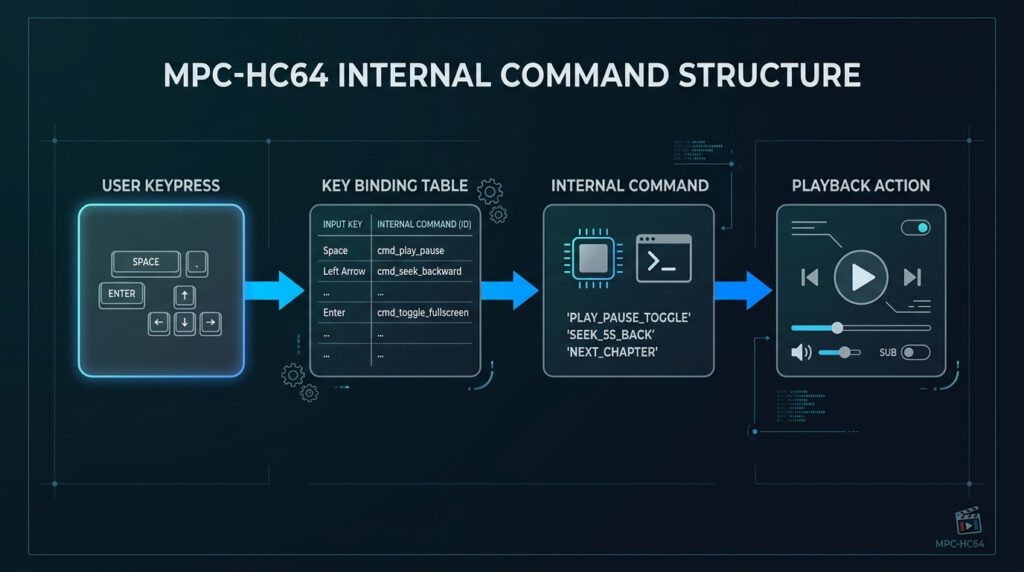
Some advanced users want to create entirely new custom commands — beyond the built-in list. MPC-HC64 supports this through its Web Interface commands and command-line arguments, but the most practical method for most users is working with what’s already in the Keys panel.
For scripting and external control, MPC-HC64 exposes a web interface that can be triggered by third-party tools and macro apps like AutoHotkey. This is how power users build:
- Macro keys on gaming keyboards that send MPC-HC64 commands via HTTP
- Stream Deck buttons that control playback
- Custom remote controls using mobile apps
But that’s a separate (and deeper) rabbit hole. For standard key bindings in mpc-hc64.exe, the Options → Keys panel covers 99% of what you need.
Exporting and Backing Up Your Key Bindings
One thing most MPC-HC64 guides skip: backing up your custom keys.
MPC-HC64 stores all settings — including key bindings — in a configuration file called mpc-hc.ini (or mpc-hc64.ini in some builds). It lives in one of these locations:
- Portable mode: Same folder as
mpc-hc64.exe - Installed mode:
%APPDATA%\MPC-HC\(paste into Windows Explorer address bar)
To back up your bindings:
- Close MPC-HC64 completely
- Copy
mpc-hc.inito a safe location (cloud storage, USB drive, etc.) - To restore, just replace the file and relaunch
This also makes migrating to a new PC completely painless — copy the .ini file and your entire configuration, including every custom key, moves with you.
Expert Tips for Power Users
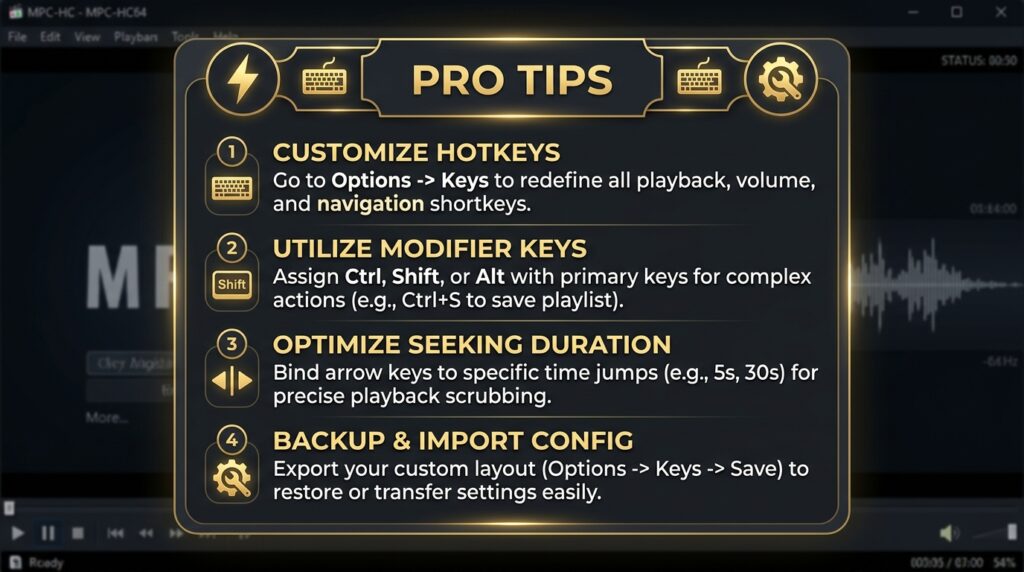
Tip 1: Use AutoHotkey for Commands. MPC-HC64 Doesn’t Expose. AutoHotkey can send keystrokes and HTTP requests to MPC-HC64’s web interface, giving you control over functions that don’t have a built-in binding slot.
Tip 2: Differentiate Between “Jump” Intervals. MPC-HC64 has small, medium, and large jump intervals — all separately configurable in Options → Player → Tweaks. Map each to a different key (e.g., Left/Right, Shift+Left/Right, Ctrl+Left/Right) for granular scrubbing control.
Tip 3: Map Mouse Buttons Too. The Keys panel also handles mouse button bindings. Got a 5-button mouse? Map forward/back buttons to chapter skip or jump commands.
Tip 4: Check for Conflicts Systematically. Sort the Keys table by the “Key” column to group bindings alphabetically. Scroll through to spot duplicates before they cause unexpected behavior.
Tip 5: Test Bindings in Different Player States. Some keys behave differently when the player is paused vs. playing vs. stopped. Test your new bindings in all three states after creating them.
Pros and Cons of Custom Key Bindings in MPC-HC64
| ✅ Pros | ❌ Cons |
|---|---|
| Fully customizable to any workflow | Requires manual backup to avoid losing settings |
| Supports complex key combinations | No built-in profile/preset system for multiple layouts |
| Mouse buttons can be mapped too | Conflicts must be resolved manually |
| Settings persist across sessions | Some commands still require menu navigation |
| Free and lightweight | Advanced scripting needs third-party tools |
Frequently Asked Questions
Q1: How do I open the key binding settings in MPC-HC64?
Go to View → Options (or press O), then navigate to Player → Keys in the left sidebar. This shows the full list of commands and their current shortcuts.
Q2: Can I assign the same key to multiple commands in MPC-HC64?
No. Each key can only be bound to one command at a time. If you try to assign a key that’s already taken, MPC-HC64 will warn you and ask if you want to overwrite the existing binding.
Q3: Where does MPC-HC64 save key binding settings?
All settings, including custom key bindings, are saved in mpc-hc.ini (or mpc-hc64.ini). In portable mode, this file is in the same folder as the executable. In installed mode, it’s in %APPDATA%\MPC-HC\.
Q4: Can I use function keys (F1–F12) as custom commands in MPC-HC64?
Yes. Function keys are supported, and most of them are unassigned by default in MPC-HC64, making them ideal for custom command mapping without risking conflicts.
Q5: How do I reset all MPC-HC64 key bindings to default?
Open Options → Player → Keys and look for a Reset or Restore Defaults button in the panel. Note that this will erase all custom bindings — back up your mpc-hc.ini file first if you want to be able to restore your custom setup.
Conclusion
Creating a custom new command key in mpc-hc64.exe takes less than two minutes once you know where to look — and the payoff is massive. Every command you map saves you clicks, interruptions, and frustration during playback sessions.
The key steps are simple:
- Open Options → Player → Keys
- Select the command you want
- Press your desired key combination
- Hit Apply
And don’t forget to back up your mpc-hc.ini file — it’s the single file that holds your entire configuration.
If you want to go deeper, explore MPC-HC’s GitHub wiki for documentation on the web interface, command-line parameters, and advanced configuration options.
Ready to take full control of your media player? Start with one command, one key — and build from there.
Have a specific command you’re trying to map but can’t find it in the list? Drop a comment below — the community is surprisingly helpful.
Also Read: What Must an Entrepreneur Do After Creating a Business Plan?
How to Reset Garage Door Opener (Step-by-Step Guide)