How to Make a Realm on Java 1.21.10 with Datapacks
Imagine that you and your friends are gearing up to play Minecraft, but the idea of the ordinary game bores you. You want to have custom crafted items, different kinds of world generation, or maybe even a hardcore mode. And you want it totally mod-free. Well, that’s exactly what datapacks are made for.
The good news? Minecraft Java Edition Realms fully supports datapacks, and setting one up on version 1.21.10 is more straightforward than most guides let on.
The somewhat challenging element is: Realms don’t allow you to upload datapacks straight through the dashboard. You have to work a bit with the world file. However, when you are familiar with the trick, it hardly takes a quarter of an hour.
This is one complete guide that will take you through each step, starting with purchasing a Realm, and ending with verifying that your datapack is indeed functioning within it.
What Is a Minecraft Java Realm?
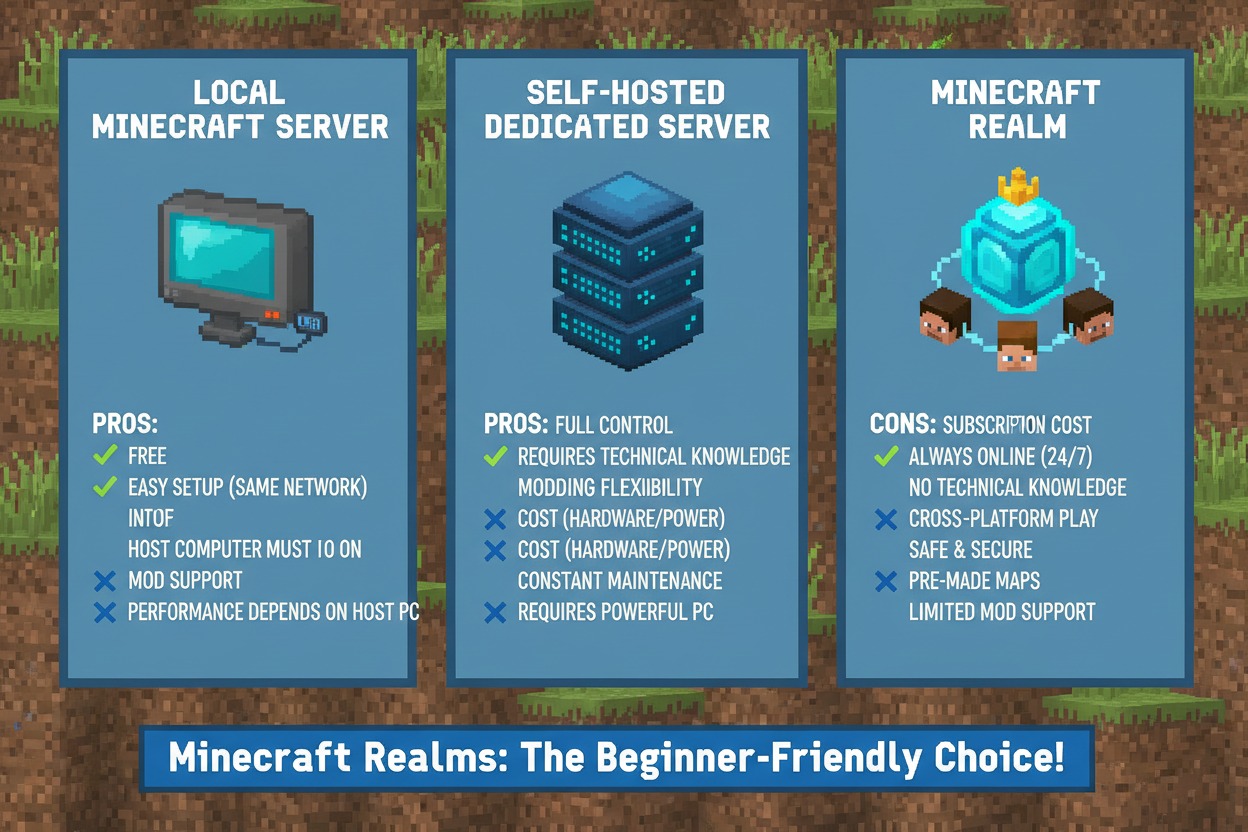
A Minecraft Realm is a private, subscription-based server hosted directly by Mojang. You pay a monthly fee, and Mojang handles all the server infrastructure — no port forwarding, no command line, no server files to manage manually.
For Java Edition, a Realm subscription supports up to 10 simultaneous players, with the world always online even when you’re not playing.
Here’s what makes Realms different from a regular server:
| Feature | Minecraft Realm | Self-Hosted Server |
|---|---|---|
| Setup difficulty | Easy (no technical skills) | Moderate to Hard |
| Cost | Monthly subscription | Server cost varies |
| Mod support | ❌ Not supported | ✅ Full support |
| Datapack support | ✅ Supported | ✅ Supported |
| Always online | ✅ Yes | Depends on host |
| Custom plugins | ❌ No | ✅ Yes |
The key takeaway: Realms supports datapacks but not mods or plugins. That’s the sweet spot this guide covers.
What Are Datapacks in Minecraft Java Edition?

Datapacks are Minecraft’s built-in way to customize a world using only JSON and function files — no mods, no Forge, no Fabric required. They were introduced in Java Edition 1.13 and have grown dramatically in capability through every major update.
With datapacks, you can:
- Add custom crafting recipes or remove existing ones
- Create custom advancements and progression systems
- Modify loot tables for mobs and chests
- Generate custom structures and biome features
- Add entirely new dimensions (in complex packs)
- Implement game mechanics using the function system
Because they’re data-only (no compiled code), Mojang allows them on Realms — they don’t pose the same security or compatibility risks that mods do.
Popular datapack sources include Vanilla Tweaks, Planet Minecraft, and Modrinth.
Before You Start: What You Need
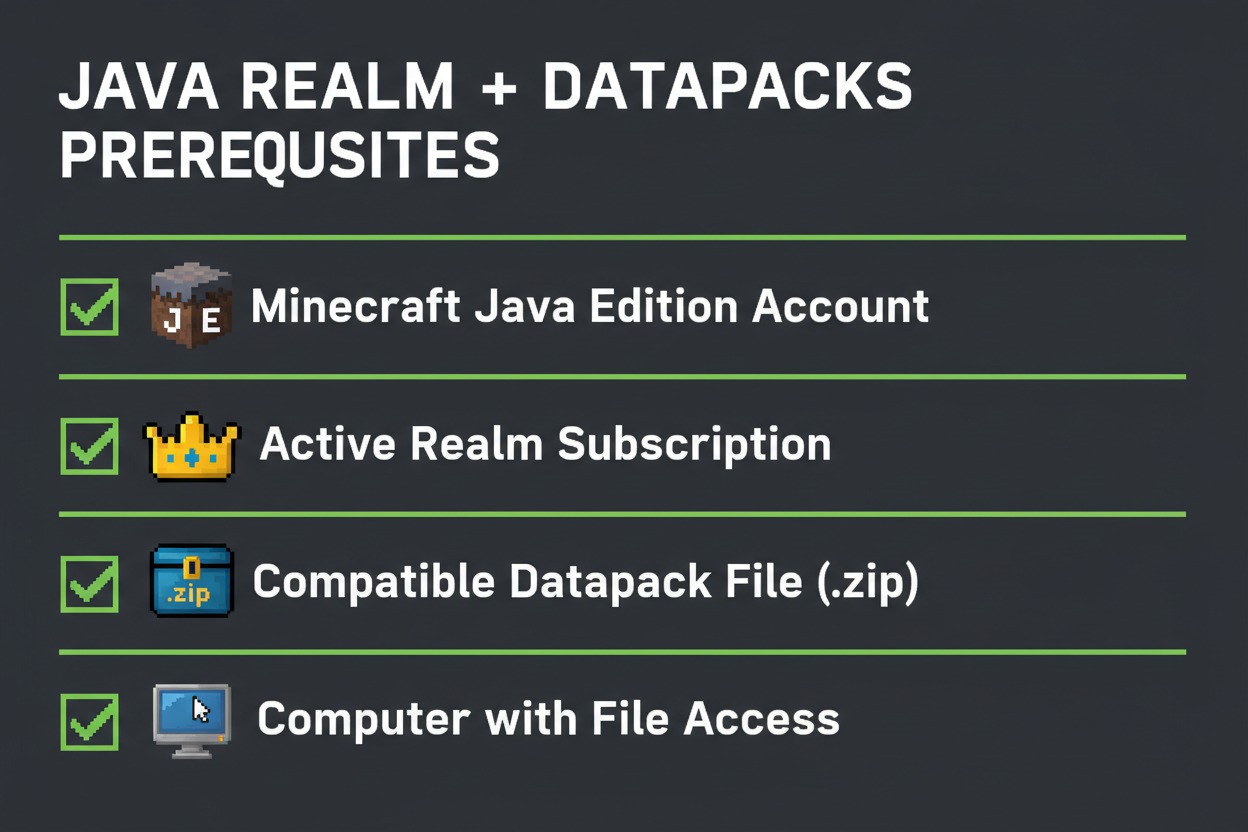
Make sure you have these ready before you begin:
- Minecraft Java Edition — purchased and installed from minecraft.net
- An active Realms subscription — available directly inside the game or via the Realms page
- A compatible datapack — downloaded as a
.zipfile. Make sure it supports Java 1.21.x (the pack format for 1.21 is 48, confirmed on the Minecraft wiki) - Basic file system access — you’ll be working with your local Minecraft world saves folder
⚠️ Version Check: Datapacks built for older versions (like 1.20.x) may not work in 1.21.10. Always verify the pack format version before downloading.
Step-by-Step: How to Make a Realm on Java 1.21.10 with Datapacks
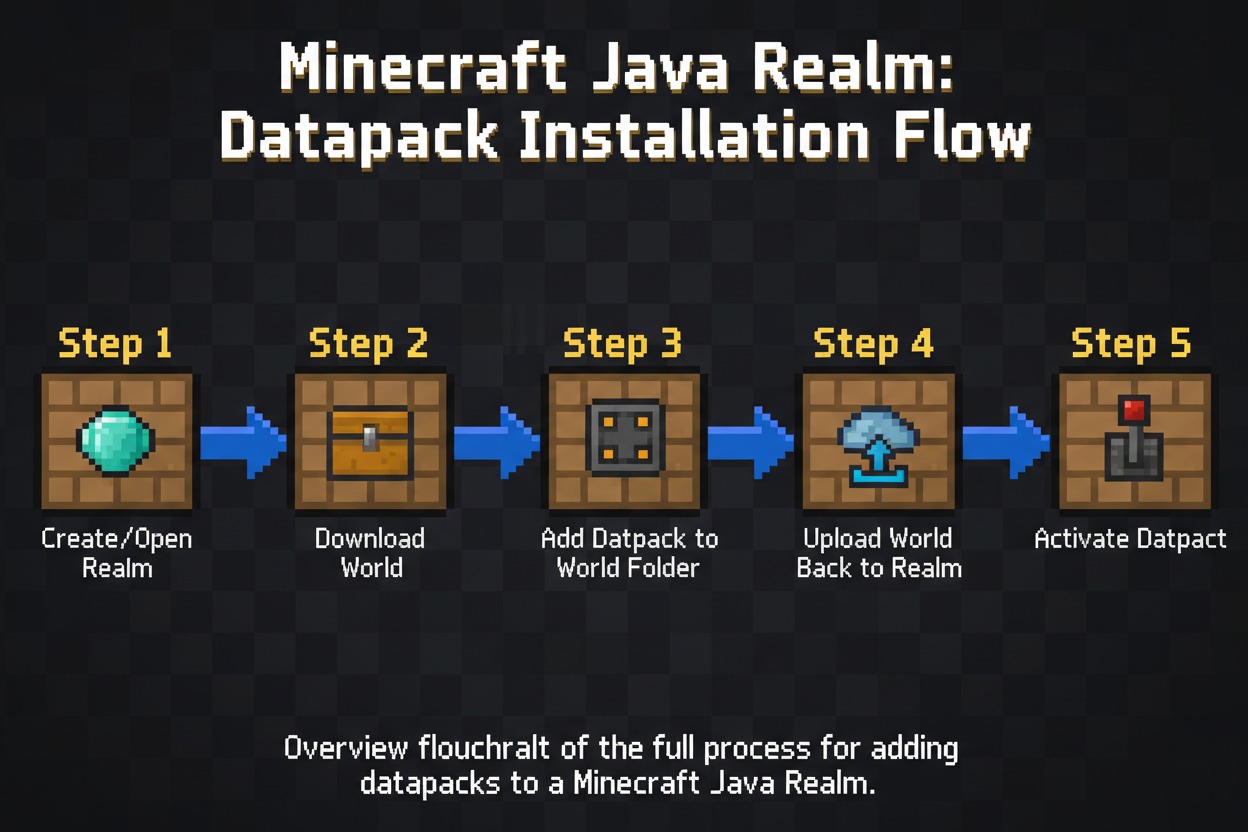
The core method works like this: since Realms doesn’t have a direct datapack upload button, you download the world from your Realm, add the datapack locally, then re-upload the modified world back to Realm.
Here’s the full process:
Step 1 — Set Up Your Java Realm

If you already have an active Realm, skip ahead. If not:
- Launch Minecraft Java Edition 1.21.10
- From the main menu, click Realms
- Click New Realm and choose your subscription plan
- Name your Realm and select a world type (you can change this later)
- Complete the purchase through Mojang’s payment system
Once your Realm is active, you’ll see it listed in the Realms menu. Don’t invite friends yet — get the datapack set up first.
Step 2 — Download Your Realm’s World

This is the step most guides skip past too quickly. Pay attention here.
- In the Realms menu, find your Realm and click the configure icon
- Inside the Realm configuration screen, locate the world slot you want to use
- Click Download World
- Minecraft will download a copy of the Realm’s world to your local saves folder
- When done, it’ll confirm the world name — usually something like
"Realm Name (Downloaded)"
💡 Note: If your Realm is brand new, the world will be essentially empty. That’s fine — you’re adding the datapack before any serious gameplay happens.
Step 3 — Add the Datapack to the World Folder

Now the actual datapack installation:
- Open File Explorer and navigate to your Minecraft saves folder:
%APPDATA%\.minecraft\saves\(Paste this directly into the Windows Explorer address bar and press Enter)
- Find the downloaded Realm world folder — it should match the name shown after the download completed
- Open that folder. Inside, you’ll see several subfolders. Look for the
datapacksfolder. If it doesn’t exist, create it — right-click → New → Folder → name it exactlydatapacks - Copy your datapack
.zipfile directly into thedatapacksfolder. Do not unzip it — Minecraft reads.zipdatapacks natively - Your folder structure should now look like:
.minecraft/saves/[Your Realm World]/datapacks/your-datapack.zip✅ Quick Check: Make sure your datapack’s
pack.mcmetafile (inside the zip) lists apack_formatof 48 for 1.21.x compatibility. You can open the zip and check with any text editor.
Step 4 — Upload the World Back to Your Realm
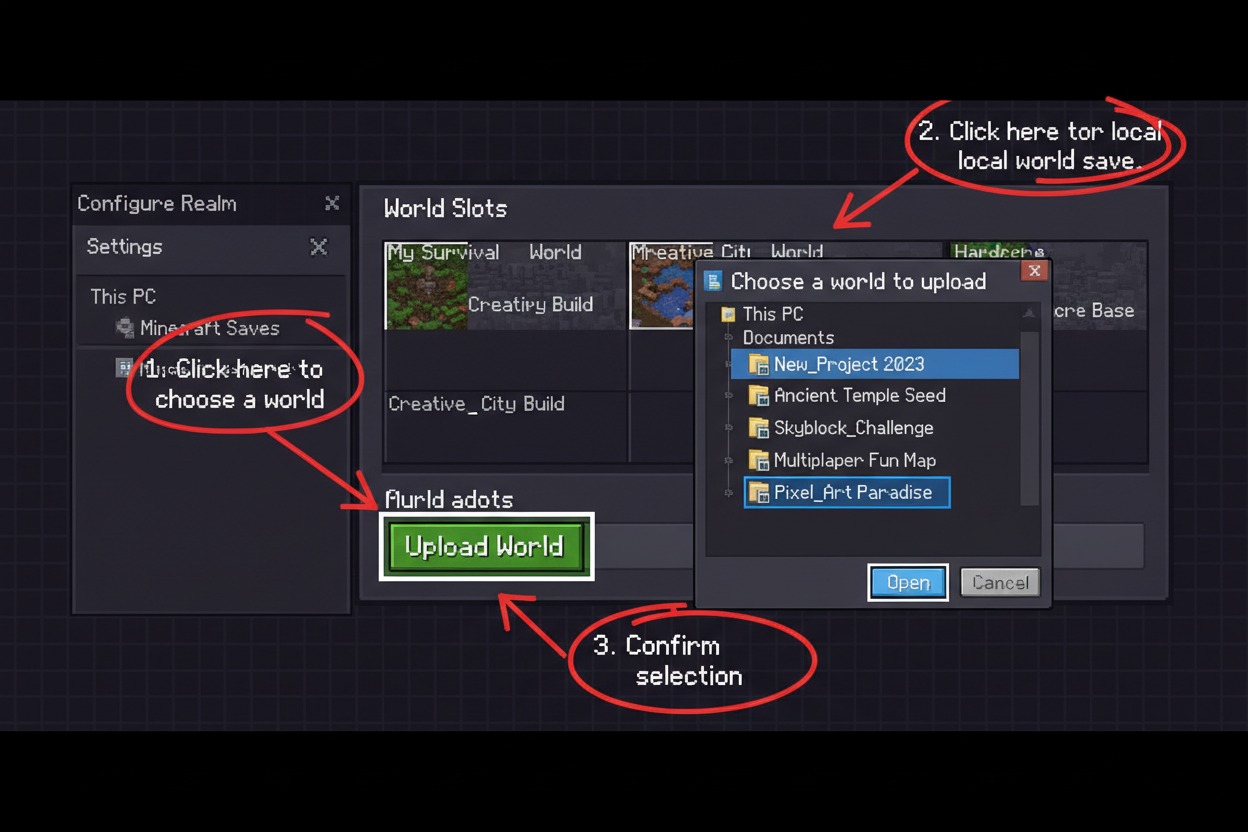
- Go back to Minecraft → Realms → click your Realm → Configure
- Select the world slot you want to use
- Click Upload World (sometimes labeled “Replace World”)
- Browse to your
.minecraft/saves/folder and select the modified world - Confirm the upload — Minecraft will push the world (with your datapack inside) to the Realm server
The upload may take a minute or two depending on world size. Once complete, the Realm will restart.
Step 5 — Verify the Datapack Is Active
Join your Realm and open the chat. Type:
/datapack list enabledYou should see your datapack listed with a green name, confirming it loaded successfully. If it shows in the disabled list instead, run:
/datapack enable "file/your-datapack.zip"Replace your-datapack.zip with the exact filename of your datapack.
🎉 That’s it. Your Realm is now running with a custom datapack on Java 1.21.10.
Troubleshooting Common Datapack Issues on Realms
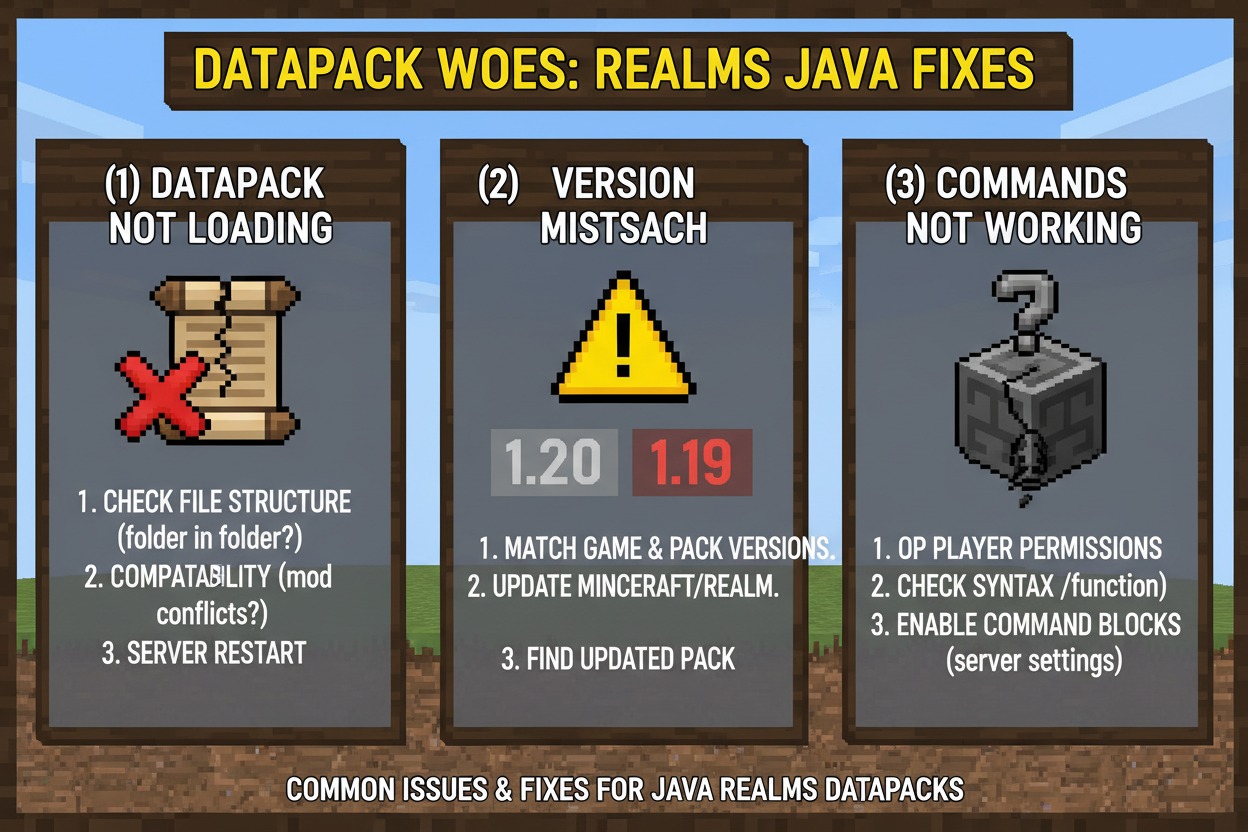
Datapack doesn’t appear in /datapack list
- Double-check the datapack is inside the
datapacksfolder, not in the root world folder - Confirm the
.zipfile wasn’t corrupted during download — redownload from the source if needed - Make sure the world was re-uploaded after adding the datapack
“Incompatible pack” error
- Your datapack was built for a different Minecraft version. Check the
pack_formatvalue in thepack.mcmetafile. For 1.21.x, it must be 48. Check the Minecraft wiki pack format table for version mapping.
Datapack loads but features don’t work
- Some datapacks require a fresh world — existing worlds may not generate new structures or biomes from a datapack
- Check the datapack’s documentation page for any setup commands you need to run manually
World upload fails
- Large worlds can time out during upload. Try trimming unused chunks using tools like Chunker before uploading
- Ensure your internet connection is stable during the upload process
Expert Tips for Running Datapacks on Java Realms

Tip 1: Always Back Up Before Uploading Before replacing a Realm world, keep a local copy of the original download. If something breaks, you can restore it without losing any player progress.
Tip 2: Test Datapacks Locally First Create a singleplayer world on 1.21.10, add your datapack, and play-test it for 10–15 minutes before putting it on a Realm. You’ll catch issues without affecting your players.
Tip 3: Use Vanilla Tweaks for Reliable Packs Vanilla Tweaks offers some of the best-maintained, version-specific datapacks available — and they explicitly label which Minecraft version each pack supports.
Tip 4: Stack Multiple Datapacks Carefully You can place multiple .zip files in the datapacks folder simultaneously. Just be aware that some datapacks conflict with each other — especially those that modify the same loot tables or recipes.
Tip 5: Communicate with Your Players If you add datapacks mid-game, tell your players what changed. New recipes, disabled features, or altered mob behavior can be confusing without context.
Pros and Cons of Using Datapacks on Java Realms
| ✅ Pros | ❌ Cons |
|---|---|
| No mods required — vanilla client compatible | Must download/re-upload world to add packs |
| Players don’t need to install anything | No direct upload UI in Realm dashboard |
| Customizes gameplay without external tools | Some datapacks require a fresh world to work fully |
| Officially supported by Mojang | Pack format must match game version exactly |
| Free to download from community sites | Conflicting datapacks can break world behavior |
Frequently Asked Questions
Q1: Can I add datapacks to an existing Realm that already has player progress?
Yes. Download the world, add the datapack to the datapacks folder, and re-upload. Existing builds, inventories, and progress are preserved. However, datapacks that add new world generation only affect newly generated chunks — not areas players have already explored.
Q2: Do my Realm players need to install anything to use datapacks?
No. Datapacks run entirely server-side. Your players just need standard Minecraft Java Edition 1.21.10 — no mods, no resource packs required (unless the datapack includes an optional resource pack for textures or sounds).
Q3: How many datapacks can I add to a Java Realm at once?
There’s no hard limit imposed by Minecraft itself. However, performance can degrade with many complex datapacks running simultaneously, especially those using functions that execute every tick. Test combinations locally before deploying to your Realm.
Q4: What pack_format do I need for Minecraft Java 1.21.10?
According to the Minecraft wiki, the data pack format for Minecraft Java Edition 1.21 is 48. Always verify the pack_format value inside your datapack’s pack.mcmeta file before installation.
Q5: Can I use Modrinth or Planet Minecraft datapacks on a Java Realm?
Yes — as long as they’re actual datapacks (.zip files with a pack.mcmeta and data folder inside), not Fabric or Forge mods. Both Modrinth and Planet Minecraft have large 1.21-compatible datapack libraries. Always verify version compatibility before downloading.
Conclusion
Setting up a Realm on Java 1.21.10 with datapacks takes a few extra steps compared to a singleplayer world — but it’s absolutely worth it. The workaround of downloading the world, adding your datapack locally, and re-uploading only takes about 10–15 minutes, and the result is a fully customized multiplayer experience that your friends can join without installing a single mod.
To recap the full process:
- Created or accessed your Java Realm
- Downloaded the Realm world to your local saves
- Dropped your datapack
.zipinto thedatapacksfolder - Uploaded the modified world back to Realm
- Verified activation with
/datapack list enabled
Now go grab a datapack from Vanilla Tweaks or Modrinth, and start building the custom Minecraft experience you’ve been imagining.
Got questions about a specific datapack or ran into an issue during setup? Drop it in the comments — the community loves helping with this stuff.
Also Read: How to Create a Custom New Command Key in mpc-hc64.exe