
Introduction: Why Fortinet Upgrade from 7.2.11 to 7.4.8 Fails
You’ve planned the maintenance window. You’ve downloaded the firmware. You click upgrade — and then nothing goes right.
It means that if you are trying to upgrade a Fortinet from 7.2.11 to 7.4.8 and hitting a wall, no wonder you are not alone. On Fortinet’s own community forums, administrators are reporting everything from hitting a stuck upgrade process to total admin lockouts after the migration was finished.
The frustrating part? In some cases, the upgrade seems to succeed — but then you can’t log in. Or your SSL VPN portal goes dark. Or a clustered device refuses to finish the process.
This guide breaks down exactly why the Fortinet upgrade from 7.2.11 to 7.4.8 fails, what each failure mode looks like, and how to get past it without losing your configuration or access.
Let’s get into it.
What Makes the Jump from 7.2 to 7.4 Tricky?
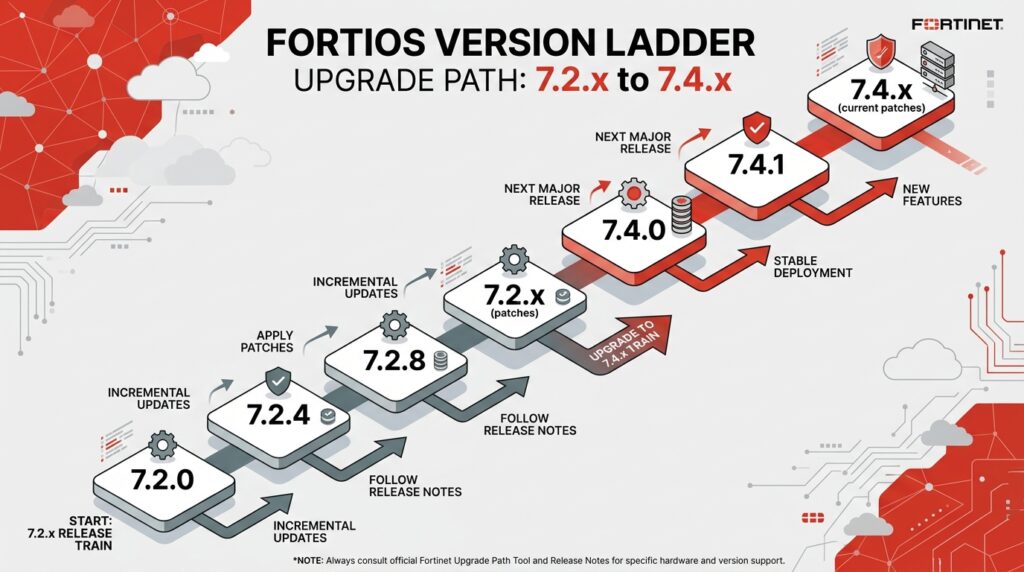
You must remember that FortiOS version jumps aren’t always plug-and-play. Going from a 7.2.x build to a 7.4.x build crosses a major branch boundary. It means you will face architectural changes, new security standards, deprecated features, and altered configuration schemas all at once.
Many administrators assume that since both versions are “7.x,” the hop should be safe. In practice, the 7.2 to 7.4 jump carries meaningful risks. You must have to follow a precise pre-upgrade checklist.
The Fortinet Upgrade Path Tool exists specifically for this reason. It calculates the safest intermediate stops between your current version and your target. If you skip it, you will face the most common causes of upgrade failure.
Reason #1: You Didn’t Follow the Recommended Upgrade Path
. This is the top reason, and it can get you at any level of network expertise.
Fortinet’s own documentation makes it clear that during firmware upgrade operations spanning multiple version hops, the “Follow upgrade path” feature in the GUI may not account for intermediate stops, particularly for devices upgraded from FortiGate firmware 7.4.0 to 7.4.3. The GUI will try to skip intermediate steps and go straight to the final version, rather than passing through the required steps.
As Fortinet’s official release notes explain, this can result in unexpected configuration loss. The recommended approach is to upgrade to each interim version individually through the CLI. So, do not rely on the GUI’s automatic path following for multi-hop scenarios.
For example, instead of jumping straight from 7.2.11 to 7.4.8, you may need to pass through an intermediate build. Use the Fortinet Support Portal to look up the exact path for your hardware model.
What to do:
- Go to docs.fortinet.com/upgrade-tool
- Enter your current version (7.2.11) and target version (7.4.8)
- Select your exact FortiGate model
- Follow each listed intermediate step — don’t skip any
Reason #2: Hardware Model Not Supported on 7.4.x
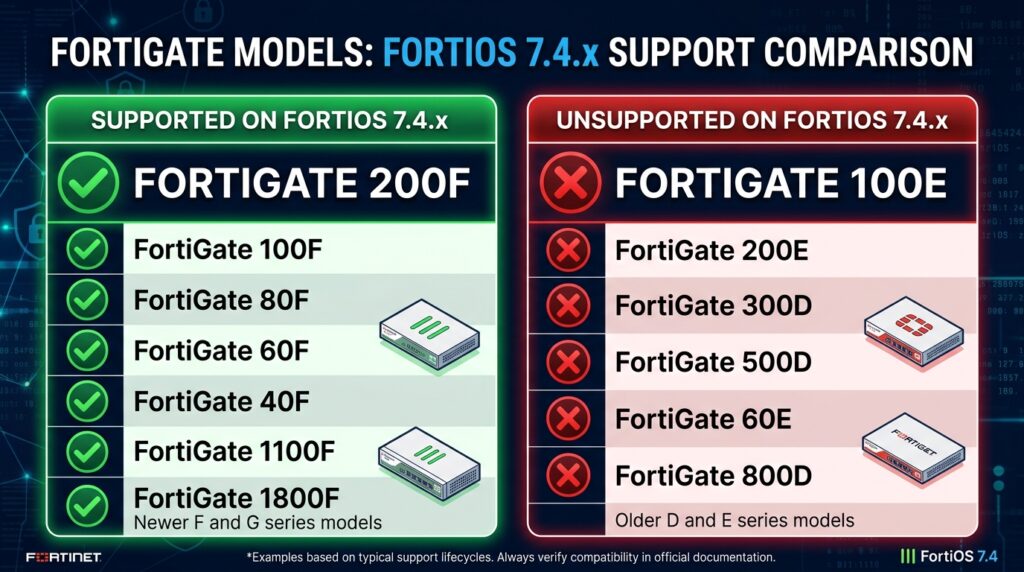
Now I will tell you an uncomfortable truth that not every FortiGate model can run FortiOS 7.4.x.
Older hardware may simply not have enough resources to support the newer update. For instance, some older models, such as the FG-100E, are not supported by the 7.4.x firmware line completely. If you try to push 7.4.8 to an unsupported device, the upgrade will either fail silently or n error will appear.
Additionally, starting from FortiOS 7.4.4, Fortinet removed proxy-related features. It will also include models with 2 GB of RAM or less. This impacts the FortiGate/FortiWiFi 40F, 60E, 60F, 80E, 90E series, and their variants. If your configuration relies on proxy features, upgrading to 7.4.8 on these models will not support capabilities entirely.
Community members have confirmed that the Fortinet compatibility matrix should be checked before attempting any cross-branch upgrade.
What to do:
- Verify your model is supported on 7.4.x via the Fortinet Product Matrix
- If your model only supports 7.2.x, upgrade within that branch (e.g., to 7.2.12 or 7.2.13)
- Consider replacing the hardware if you need 7.4.x features on an aging device
Reason #3: The PBKDF2 Password Hashing Change Locks You Out
This reason is the silent killer, and it catches many admins.
Starting with FortiOS 7.2.11, 7.4.8, and 7.6.1, Fortinet introduced a new, more secure password hashing scheme called PBKDF2 (Password-Based Key Derivation Function 2). Previously, FortiOS used SHA256 to hash administrator passwords.
According to Fortinet’s official documentation, if your device is upgraded to 7.2.11 or 7.4.8 and admin credentials are saved under the new PBKDF2 scheme, any subsequent downgrade to a version that doesn’t support PBKDF2 (such as 7.4.7 or earlier) will cause admin login to fail. It will result in a complete administrator lockout.
This also explains why some admins who try to roll back their failed 7.4.8 upgrade find themselves locked out of their device on the downgraded version.
The fix — before you upgrade:
Run this command in the CLI to disable the lockout-on-downgrade behavior:
bash
config system password-policy
    set login-lockout-upon-downgrade disable
end
This preserves the legacy SHA256 hash alongside the new PBKDF2 hash, ensuring that a rollback won’t destroy your access credentials.
Expert Tip: Even if you don’t plan to downgrade, run this command before upgrading. It’s a safety net that costs nothing and could save you an emergency console session.
Reason #4: RSA Certificate with a 1024-bit Key Blocks GUI Access
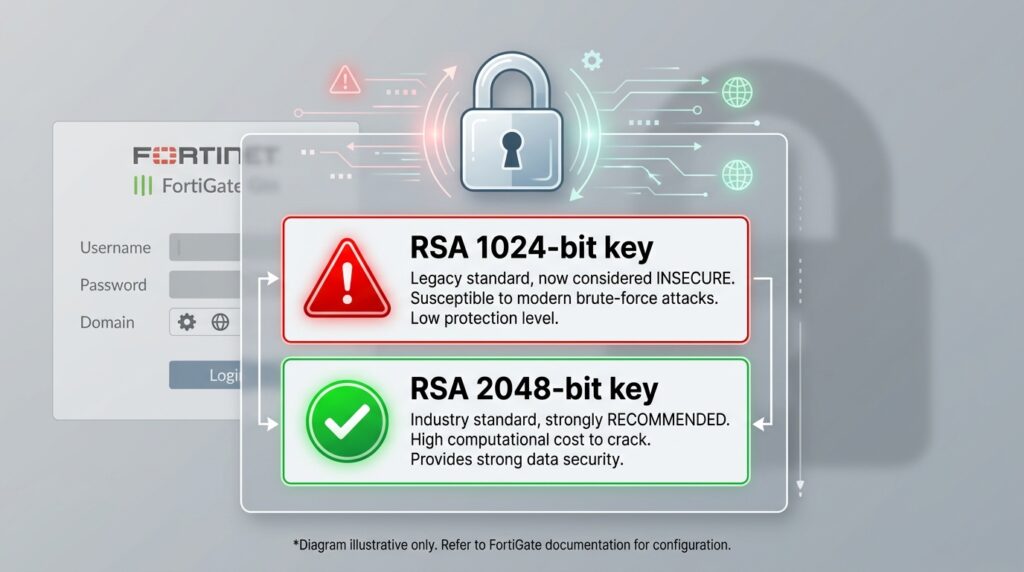
This reason surprises many people. After upgrading, the web-based GUI won’t load even though the upgrade technically completed.
The culprit is often an RSA 1024-bit admin server certificate. Beginning with FortiOS 7.4.8, 7.6.1, and 7.2.11, Fortinet enforces a minimum RSA key length of 2048 bits for server certificates. Certificates using a 1024-bit key are no longer supported.
If your FortiGate was using that certificate, you won’t be able to access the GUI after the upgrade. The only path in at that point is the CLI via console.
What to do before upgrading:
- Check your current admin server certificate key length
- If it’s 1024-bit, generate a new certificate with at least 2048 bits before performing the upgrade
- Apply the new certificate as your admin server cert, then proceed with the upgrade
This applies to the admin HTTPS access certificate configured under config system global set admin-server-cert.
Reason #5: LDAP / LDAPS Authentication Fails After Upgrade
Here’s a quieter failure that shows up after the upgrade completes successfully. It means the users can’t authenticate.
Starting with FortiOS 7.4.4 and later (including 7.4.8), Fortinet tightened LDAPS security by requiring FortiOS to validate and trust the LDAP server’s CA certificate during the TLS handshake. Previously, this wasn’t enforced.
If the LDAP server’s CA certificate was not pre-imported into your FortiGate, LDAPS authentication will fail after the upgrade to 7.4.8 . It is silently breaking login for any user accounts tied to that LDAP directory.
According to the FortiOS 7.4.8 Release Notes, the fix is simple but must be done before upgrading. It imports the LDAP server’s CA certificate to your FortiGate.
What to do:
- Navigate to System > Certificates and import your LDAP server’s CA certificate
- Verify under User & Authentication > LDAP Servers that the certificate is correctly associated
- Then proceed with the firmware upgrade
Reason #6: SSL VPN Web Portal Breaks on 2 GB Models
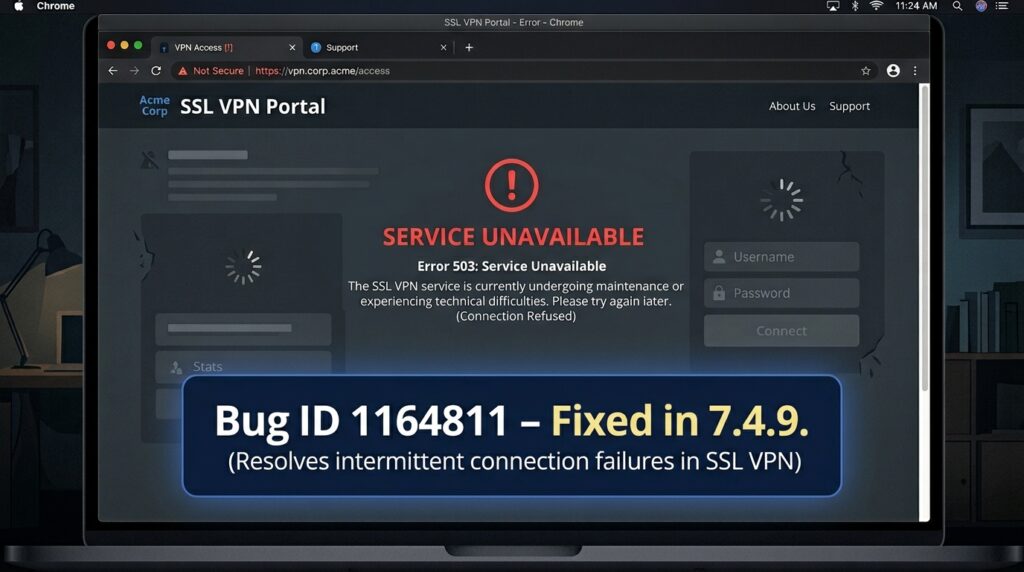
This one has a confirmed bug ID.
After upgrading to FortiOS 7.4.8, users on entry-level FortiGate models with 2 GB of RAM (such as the 60F) reported that the SSL VPN web portal completely stopped working. Multiple community members have confirmed this and identified it as Bug ID 1164811, documented in the 7.4.8 known issues release notes.
The fix was delivered in FortiOS 7.4.9. If you’re running 7.2.11 and planning to upgrade, this means jumping straight to 7.4.8 on a 2 GB model could leave your SSL VPN broken. The only option is to upgrade again to 7.4.9.
Options:
- If SSL VPN is critical, skip 7.4.8 and target 7.4.9 or later
- If you’ve already upgraded to 7.4.8, update to 7.4.9 to resolve this
- Avoid rolling back to 7.4.7 (you’ll hit the PBKDF2 admin lockout described above)
Reason #7: Manual Firmware Upload Option Disappears in 7.2.11
This is a workflow issue rather than a hard failure, but it’s caused a lot of confusion.
In FortiOS 7.2.11, the local file upload option for manual firmware upgrades gets moved under “Fabric Management” rather than the traditional System > Firmware location. Some users found the file upload button grayed out or entirely missing. It prevents them from initiating the upgrade manually.
Community threads confirm that this often happens because a federated upgrade is pending or active in the background. The workaround is to cancel any active federated upgrade via the CLI. After which, the manual upload button becomes available again.
CLI command to cancel federated upgrade:
bash
execute federated-upgrade cancelAfter running this, return to the GUI, and the firmware upload option should reappear.
Pre-Upgrade Checklist: Do These Before You Touch Anything
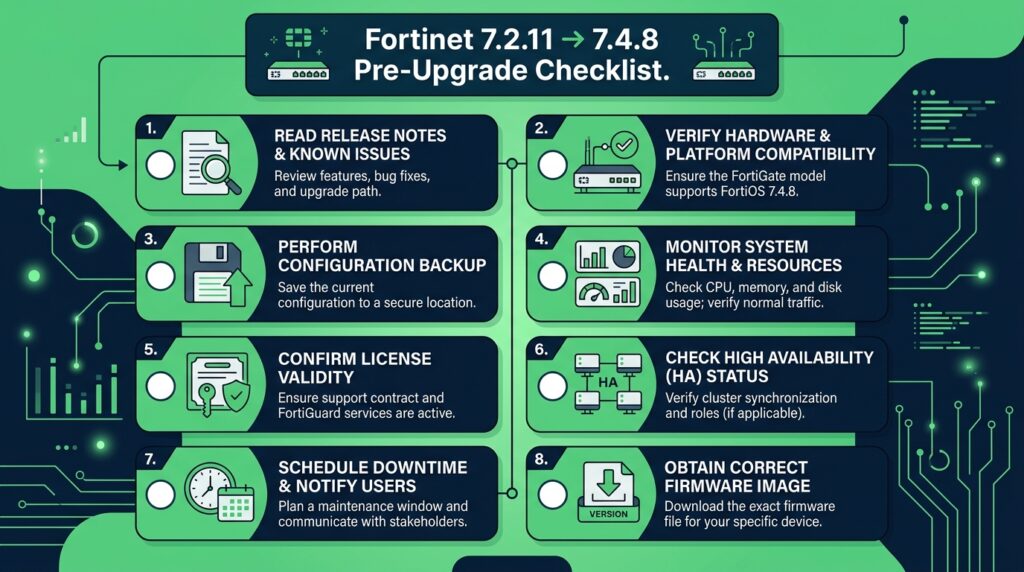
Here is a checklist based on everything documented above. We suggest that you work through this before initiating the upgrade.
| No | Checklist Item | Why It Matters |
|---|---|---|
| 1 | Verify hardware model supports FortiOS 7.4.x | Older models may be incompatible |
| 2 | Use the Upgrade Path Tool | Skip steps = config loss |
| 3 | Back up full configuration | Always — no exceptions |
| 4 | Disable login-lockout-upon-downgrade | Prevents admin lockout on rollback |
| 5 | Check admin server certificate key length | RSA 1024-bit = no GUI access post-upgrade |
| 6 | Import LDAP server CA certificate | Required for LDAPS to keep working |
| 7 | Cancel any pending federated upgrades | Clears manual upload blockage |
| 8 | Test console access | In case GUI access fails post-upgrade |
Step-by-Step: How to Perform the Upgrade Correctly
Step 1: Back Up Your Configuration
Never skip this. Go to System > Maintenance > Backup, or run:
bash
execute backup config ftp <filename> <ftp-server> <username> <password>Step 2: Check the Upgrade Path
Visit docs.fortinet.com/upgrade-tool and verify the exact path for your model from 7.2.11 to 7.4.8. There may be a required stop at an intermediate version.
Step 3: Run Pre-Upgrade Commands
bash
config system password-policy
    set login-lockout-upon-downgrade disable
end
Step 4: Verify Certificate Strength
bash
show system global | grep admin-server-certIf it points to a cert with an RSA 1024-bit key, replace it before proceeding.
Step 5: Import LDAP CA Certificate (If Applicable)
Under System > Certificates, import the CA certificate used by your LDAP server.
Step 6: Download and Apply Firmware
Download the correct firmware from support.fortinet.com. For multi-hop paths, do each intermediate upgrade one at a time — don’t batch them.
Step 7: Verify Post-Upgrade
After the device reboots, confirm:
- GUI access works
- Admin login succeeds
- SSL VPN (if used) is functional
- LDAP authentication is working
- Policy rules are intact
Expert Tips

Our key recommendation is to always upgrade during low-traffic windows. Fortinet’s own documentation notes that firmware upgrades interrupt traffic for a few minutes. Plan your maintenance window accordingly.
For HA clusters, use the uninterruptible upgrade mode. Run:
bash
config system ha
    set upgrade-mode uninterruptible
end
This minimizes downtime during clustered upgrades.
- Don’t rely on the GUI “Follow upgrade path” button alone for major version jumps. The GUI has a documented bug on devices running 7.4.0–7.4.3 where it skips intermediate stops.
- Always confirm the path via the Fortinet Upgrade Tool and execute each hop manually.
- Test your rollback plan. Know the console access procedure before you start. If you need to recover from a failed upgrade, you’ll need console access and potentially a TFTP server to re-image the device.
Frequently Asked Questions
1. Why Fortinet Upgrade from 7.2.11 to 7.4.8 Fails with no error message?
A silent failure usually means the device booted into a previous version after an interrupted upgrade. This often happens when intermediate upgrade steps are skipped or when the firmware file is corrupted during download. Always verify the MD5 checksum of the downloaded firmware file from Fortinet’s support portal before uploading, and follow the exact upgrade path for your model.
2. After the Fortinet upgrade from 7.2 11 to 7.4 8, I can’t log in. What happened?
This is almost certainly the PBKDF2 password hashing change. Starting with 7.4.8, FortiOS uses a stronger hashing algorithm for admin passwords. If you downgraded. Or if the upgrade failed mid-process and partially applied the new hash. The old password hash may no longer match. The fix is to reset the admin password via console access. Before future upgrades, run set login-lockout-upon-downgrade disable under config system password-policy.
3. My FortiGate 60F SSL VPN stopped working after upgrading to 7.4.8. Is this a known bug?
Yes. This is confirmed Bug ID 1164811, documented in Fortinet’s 7.4.8 known issues. The SSL VPN web portal on 2 GB RAM models breaks in 7.4.8. The fix is to upgrade to 7.4.9, which resolves this specific bug.
4. Can I skip intermediate upgrade steps when going from 7.2.11 to 7.4.8?
No — and this is emphasized across Fortinet’s official documentation. Skipping intermediate steps can cause unexpected configuration loss and failed upgrades. Always use the Upgrade Path Tool and apply each required intermediate version one at a time. The GUI’s “Follow upgrade path” option has a known bug that may skip steps on certain versions.
5. My LDAP users can’t authenticate after the upgrade to 7.4.8. What changed?
Starting with FortiOS 7.4.4, Fortinet requires FortiOS to validate the LDAP server’s CA certificate during a TLS handshake for LDAPS connections. If you didn’t import the LDAP server’s CA cert before upgrading, authentication will break. Import the CA certificate under System > Certificates, associate it with your LDAP server settings, and LDAPS authentication will resume.
Conclusion: Plan First, Upgrade Second
Upgrading from FortiOS 7.2.11 to 7.4.8 is absolutely doable — but it’s a process that punishes shortcuts.
The failures we’ve covered — wrong upgrade path, incompatible hardware, PBKDF2 admin lockouts, outdated RSA certificates, LDAP authentication breaks, and SSL VPN bugs — each have clear causes and clear fixes. The good news is that every one of them is preventable with proper preparation.
Before your next upgrade attempt:
- Use the Fortinet Upgrade Path Tool
- Work through the pre-upgrade checklist in this article
- Back up your config and test console access
- Plan an upgrade path that accounts for known bugs in 7.4.8 (and consider targeting 7.4.9 or later)
If you’re still running into issues after following all the steps, open a case with Fortinet’s Customer Support. They can review your specific hardware model and configuration to identify issues not covered in the general documentation.
Got a specific upgrade error you’re seeing that isn’t listed here? Drop it in the comments — real-world failure scenarios often help other admins diagnose their own issues faster.
This article is based on information from Fortinet’s official documentation, release notes, and verified community reports. Always check the latest release notes for your specific firmware version before upgrading.
Also Read: How to Make a Realm on Java 1.21.10 with Datapacks
How to Create a Custom New Command Key in mpc-hc64.exe