How To Add My Business To Apple Maps: A Step-by-Step Guide
If you are searching for “how to add my business to Apple Maps,” start with Apple Business, the platform for managing your business information across Apple services. Search for your location before creating a new entry, then complete the applicable verification process. Adding and managing your listing is free.
A listing is useful only when customers can trust the details. This guide explains the current setup process, what to prepare, how verification works, and how to keep your address, hours, and customer links accurate.
Quick Answer
Use the business registration and management portal to get started. You will need accurate business information and access to the account and verification evidence used to manage it.
If your business already appears on Maps, work with that entry rather than immediately creating another. Once your information is approved, check the public listing as a customer would, including its contact details and directions.
Key Takeaways
- Apple Business is the current platform; older tutorials may call it Apple Business Connect.
- Basic listing management is free. Advertising and optional paid services are separate.
- Search for your existing location before creating a new one.
- Account confirmation, organization verification, and photo approval are different stages.
- Accurate contact details and working customer links matter more than filling every field quickly.
- Review the public listing after approval and whenever your business changes.
Is Apple Business Connect Still the Right Platform?
Apple Business Connect became part of Apple Business when the new platform launched on April 14, 2026. The transition to the unified business platform brought brand and location management into the same service as other business tools.
That explains why an older tutorial may show screens or terminology that differ from what you see today. Existing Business Connect information was set to migrate, so an established user should check the existing account before starting a second organization.
For a local business owner, the relevant public listing is its place card. This is the information panel customers see for a location, including details such as hours, photos, and contact options.
What Should You Prepare Before Adding Your Business?
I would start by making one accurate reference sheet for your business. Keep it available while you enter the details so you are not guessing about your phone number, opening hours, or address formatting.
Prepare the following:
| Information | What to check before entering it |
|---|---|
| Public business name | Match the name customers recognize from your signage and website. |
| Organization information | Keep official details available for verification. |
| Location address | Confirm the building, unit, and postal details. |
| Contact number | Test that customers can reach the correct business. |
| Business category | Identify the closest description of what this location actually does. |
| Opening hours | Separate customer opening hours from staff working hours. |
| Website or customer page | Test the destination on a phone before using it. |
| Verification evidence | Gather the documents or access needed for the methods offered. |
| Location photos | Choose clear, authentic photographs you have permission to use. |
The public trading name and the legal organization name may differ. Record both clearly so you can enter each in the appropriate place instead of forcing every field to use the same wording.
If your offer is still difficult to explain, clarifying your business concept can help you describe what customers should expect. Use that clarity to choose accurate wording, rather than turning the listing into a long sales pitch.
how to add my business to Apple Maps: The Current Steps
Use the current portal rather than relying on the layout shown in an old screenshot. The following sequence follows the instructions for adding or claiming a location.
1. Sign In or Register Your Organization
Open Apple Business and use your existing account, or follow the registration prompts. For a new organization, provide the requested organization and administrator details and confirm your email and phone access.
I recommend using an email address you will continue to monitor. Record who is responsible for the account so a future staff change does not leave the business unable to update its listing.
2. Search for the Location
Choose Brands > Locations > Add, then search your business name. Select the matching existing entry, or choose Add a new location with this name if there is no match.
Before selecting a result, compare its address and surrounding businesses. A similar name in another neighborhood is not your listing, and a former occupant of your building is not automatically the same business.
3. Enter the Location Details
Confirm the address and map position, then enter the language, display name, category, status, phone, and optional website. Set the hours and associate the location with an existing or new brand.
Review each field before continuing. A misplaced digit in a phone number can stop an inquiry just as effectively as an incorrect address can disrupt a visit.
4. Complete the Applicable Verification
Follow the verification route offered for your organization or existing location. Submit the required information and review the status afterwards.
Keep copies of the evidence you submit and note the submission date. Those records will help you explain the issue if you need support later.
5. Check the Customer Experience
After approval, find the business in Maps and inspect its public information. Test the phone and website links, then review the address and directions.
Ask someone unfamiliar with your premises whether the listing gives them enough information to find you. They may notice an unclear entrance or a confusing appointment link that you overlook because you already know the business.

How Does Business Verification Work?
For organization verification, the current registration and verification requirements require two verification methods. Options include a business identifier, domain validation, an associated App Store Connect app where available, or accepted official documents.
The documented route is Settings > Organization > Verify Now. Choose the applicable methods, provide the evidence, and send it for review.
Receiving a sign-in code does not mean your organization has been approved. Treat account access and business verification as separate tasks, and check the dashboard for outstanding requirements.
Prepare evidence that reflects the organization you are registering. If a document shows an old address or a different legal name, resolve or explain that discrepancy rather than uploading several inconsistent files and hoping one works.
For some existing locations, phone verification is available using the number Apple already holds. If that number is unfamiliar, contact support instead of trying to receive a code through someone else’s phone.
How Long Does It Take to Add a Business to Apple Maps?
There is no single approval time that covers every stage. Organization verification can take up to five working days, with additional time possible during high application volumes; photo review can take up to three working days.
Those review periods are not a promise that every new listing will become fully visible on a particular date. Account issues, missing evidence, and ownership disputes can require additional work.
I would avoid planning an opening announcement around an assumed instant approval. Submit accurate information early, then check the actual public listing before telling customers to rely on it for directions.
If a submission seems delayed, first check whether it is waiting for your response. Review account notifications and email folders before resubmitting the same information.
How to Add or Manage Your Business on an iPhone
You can use the business portal through your iPhone’s browser. Apple’s phone navigation guidance directs phone users to the menu in the upper-left corner, while larger devices use the toolbar.
Follow the same overall registration and location workflow. A larger screen may be more convenient when you need to compare documents or adjust a map position, but the task does not begin by installing a special listing app.
For day-to-day checks, open Maps and review what customers see. Use the management portal for ongoing owner-controlled updates rather than treating a public correction report as a substitute for managing the listing.
How to Change Your Business Address or Update Details
To make routine updates, select the location under Brands > Locations, edit the relevant information, and save it. The instructions for updating an existing location also explain how to correct the map position and maintain regular or special hours.
If the street address itself needs changing, review the editable fields and any additional prompts shown for that location. Changing a marker fixes its geographic position; it should not be assumed to replace an incorrect written address.
For a move, prepare a coordinated update across the places customers use to find you. Check your website, appointment confirmations, social profiles, and other business listings so people do not receive conflicting directions.
Check the Pin and the Entrance Separately
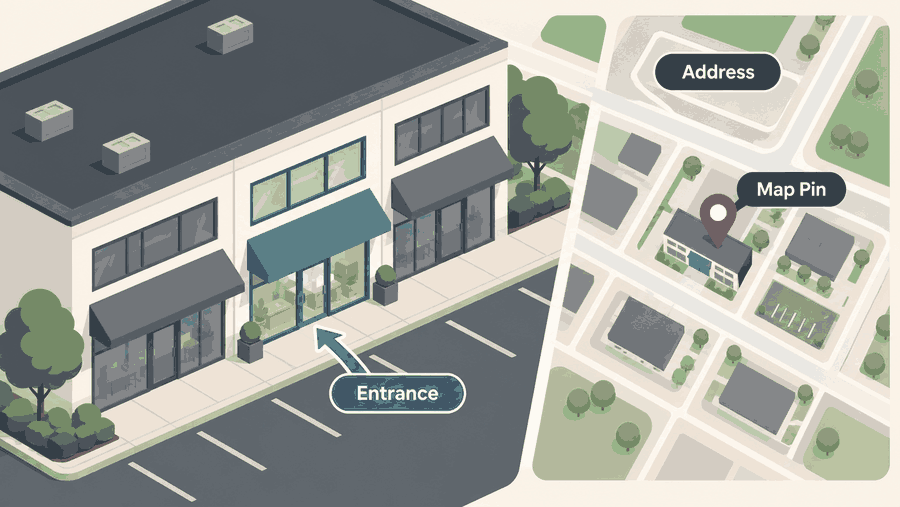
A correct postal address does not guarantee that a customer can identify your entrance. This is especially relevant for shopping centers, shared buildings, and businesses with parking at the rear.
For example, a salon may occupy the correct building but have its door on a side street. Review the map position and available location attributes, then use a clear exterior photograph to help visitors recognize the premises.
Review Holiday and Appointment Hours
Special hours deserve attention whenever your normal schedule changes. A customer arriving on a holiday should not have to discover a closure from a note on the door.
For an appointment-based business, I recommend checking whether the hours communicate when customers can actually attend or contact you. Keep the booking page consistent with that schedule so a listed opening time does not create a false expectation of walk-in service.
What If Someone Else Already Manages the Listing?
An already-managed location requires a transfer request rather than another listing. Select Request Transfer, explain your entitlement to manage it, and provide supporting documentation; the transfer review can take up to five business days.
Start by checking who may already have access within your business. A previous employee, agency, or business partner may know which account was used.
Keep the discussion focused on ownership and authorization. Creating a second entry does not resolve the original management issue and can leave customers unsure which listing to trust.
Make Your Listing Useful After Approval
Getting approved is the start of maintaining a reliable listing. I recommend reviewing it whenever you change your schedule, services, customer phone number, or website.
Use Authentic Location Photos
Choose images that help a customer recognize the actual business. Exterior photographs, a clear entrance, and representative interiors are more useful than generic decorative pictures.
The photo quality and authenticity standards require relevant images and restrict stock photographs, watermarks, added text, and misleading edits. Use genuine photographs for your listing; the illustrations in this article are educational blog visuals.
Test Every Customer Link
Open your linked page on a phone and attempt the task it promises. If a booking link leads to the wrong branch, an expired promotion, or a form that cannot be submitted, fix the destination.
A multi-location business should be particularly careful here. A customer viewing one branch should not have to guess which address to select after following its link.
Keep Maps Part of Your Wider Marketing
A correct listing helps customers find and contact you, but it does not replace a useful website. Apply the broader principles of local search visibility for small businesses by keeping customer information clear and consistent across your online presence.
Avoid promising that a particular category or photograph will guarantee a top position. Focus first on giving a potential customer enough accurate information to decide whether your business meets their needs.
Review Insights With Care
The location insights documentation describes searches, place-card views, and customer actions. It also notes privacy thresholds that can cause low-volume metrics to appear as zero.
Use those reports to ask practical questions about customer interest. A tap is not automatically a completed booking or sale, so compare listing activity with your own inquiries and business records before drawing conclusions.
Common Problems and What to Check
Troubleshooting is easier when you identify the specific stage that is failing. Write down whether the issue concerns account access, verification, public visibility, or incorrect customer information.
| Problem | Useful first check |
|---|---|
| You cannot find the listing | Try the trading name, exact address, and possible older business name. |
| You cannot edit a location | Confirm you are in the correct organization and have suitable permissions. |
| Verification is still pending | Check for outstanding requests and inconsistencies in your submitted details. |
| The listing points to the wrong place | Compare the written address with the map position and actual building. |
| A photo is not visible | Check its review status and the photo standards. |
| A link does not work | Test the destination in a mobile browser without relying on an existing login. |
| Multiple entries seem to represent the same business | Record the entries and seek support rather than creating another. |
If you contact support, include the business name, location address, account organization, and a clear description of the problem. Screenshots of the relevant status or error can make the issue easier to understand.
FAQs
Is It Free to Put Your Business on Apple Maps?
Yes, basic business listing management is free through Apple Business. Optional advertising and paid add-on services have separate costs, so distinguish those offers from the listing itself.
Can I Add My Business Without a Website?
The location setup permits an optional website address and can use a supported social page instead. Choose a page with accurate contact information, and check that customers can access it easily.
Can an Online-Only Business Use Apple Business?
Yes, the platform supports businesses without physical locations as well as businesses with premises. Registering an online business is different from creating a physical Maps place card, so do not invent a storefront address simply to obtain a map pin.
How Do I Add My Business Account to Apple Maps?
Create or access your organization in Apple Business, then manage the relevant location there. Your management account is separate from the public place card customers view in Maps.
Can I Manage More Than One Location?
Yes, Apple Business allows locations to be managed separately within your organization. Maintain a distinct address, schedule, and customer destination for each branch so one location’s information does not accidentally describe another.
Will My Google Business Profile Automatically Appear on Apple Maps?
Do not assume that maintaining one platform updates the other. Check your Apple Maps information independently and keep a reference sheet that helps you review both listings consistently.
Conclusion
The answer to “how to add my business to Apple Maps” begins with accurate details and the current Apple Business portal. Find the right entry, complete the required verification, and review the public listing from a customer’s point of view.
Start today by checking whether your business already appears in Maps and gathering the information you need to manage it. After approval, set a regular reminder to review your hours, contact links, photographs, and directions so customers can continue to rely on them.