
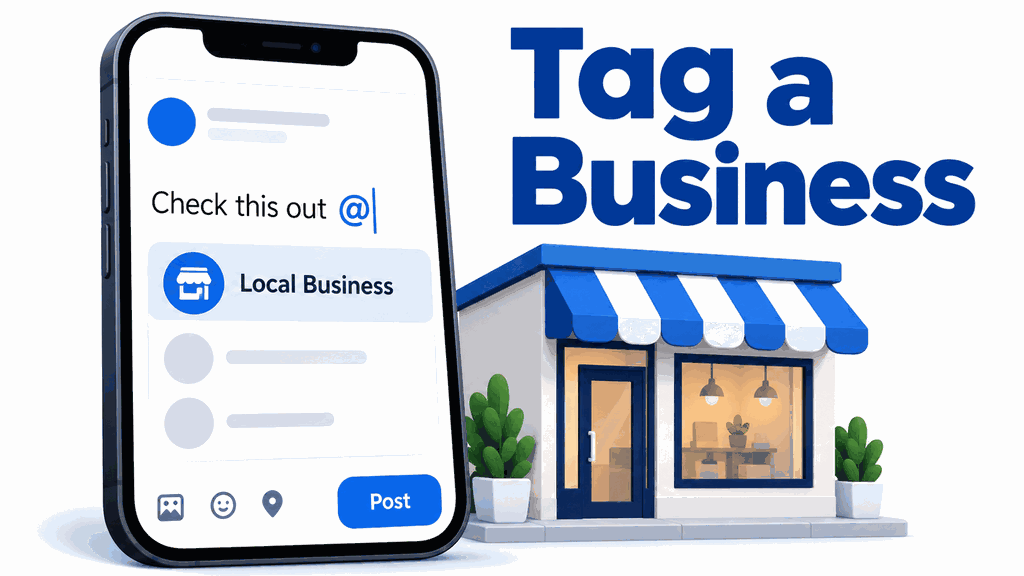
How to tag a Business on Facebook: Steps and Fixes
If you want to know how to tag a business on facebook, start by typing @ followed immediately by the business Page’s name in your post or comment. Then select the correct Page from the suggestions. That selection turns the business name into a link people can open.
The frustrating part is when the business does not appear, or your finished post contains a name that nobody can click. This guide explains the desktop and mobile steps, how to mention your own business, and what to check when tagging fails.
Quick Answer
Open a Facebook post or comment field, type @Business Name, and choose the matching business Page from the suggestion list. Finish your message and publish it. Open the published mention to confirm that it leads to the correct Page.
For an ordinary text mention, you do not need a separate tagging button. Photo tags use a different control, and their availability can depend on permissions and Page settings.
Key Takeaways
- Select the suggested Page; typing its name alone does not complete the mention.
- The basic text-mention process is similar on desktop, iPhone, and Android.
- Check the Page’s identity before choosing between businesses with similar names.
- Text mentions, photo tags, check-ins, and product tags serve different purposes.
- A mention does not guarantee that the business will share your post or that its followers will see it.
- Test the published link rather than relying only on its appearance in the draft.
What Does Tagging a Business on Facebook Mean?
In everyday conversation, “tagging a business” usually means mentioning its Facebook Page in a caption or comment. The resulting link helps readers find the business without conducting a separate search. A photo tag, by comparison, attaches an identity to a location within an image.
These features are easy to confuse because Facebook uses tagging language in several places. Choose the feature that matches what you want readers to do, rather than searching every menu for the same button.
| Feature | What it does | When to use it |
|---|---|---|
| Page mention | Links a business name within your text | Recommendations, acknowledgments, and collaborations |
| Photo tag | Identifies a Page or person within an image, where supported | Relevant photos with tagging available |
| Check-in | Adds a selected place to a post | Sharing where you visited |
| Hashtag | Labels a topic with a # phrase | Connecting content to a subject |
| Product tag | Connects content to an eligible shopping item | Supported shopping content |
A hashtag containing a business name is not a substitute for selecting its Page. Likewise, a check-in should not be assumed to create the same text link as an @ mention.
how to tag a business on facebook on Desktop
Start with an ordinary post composer in your browser. Facebook’s layout can vary, so follow the function of each control rather than expecting every button to occupy a fixed corner.
- Check your posting identity. Decide whether you want the post to come from your personal profile or a Page you manage.
- Start the post. Open the status field, commonly labeled “What’s on your mind?”
- Write your message. Add the recommendation, update, or acknowledgment that explains why the business is relevant.
- Begin the mention. Type @ and immediately start entering the Page’s name. Spaces inside a multiword business name are fine.
- Select the correct result. Compare the Page name and profile image before choosing it.
- Publish and check. Complete the post, review its audience, and publish it. Open the linked business name to verify the destination.
The essential selection-and-check sequence is demonstrated in this step-by-step Page tagging guide. A visible suggestion is a candidate, so take a moment to confirm it before posting.
For example, imagine recommending a fictional shop named Maple Street Bakery. Your caption might say, “The team at Maple Street Bakery helped us organize refreshments for the event.” Add the actual Page mention on the bakery’s name while composing the sentence, rather than publishing an unlinked name and assuming Facebook will connect it later.

How to Tag a Business on the Facebook App
The core method is the same on iPhone and Android. The keyboard layout and placement of the composer controls may differ, but you still need to select a matching Page.
On iPhone
- Open Facebook and confirm which profile or Page you are using.
- Tap the field for creating a post.
- Write your caption, then type @ followed by the business name.
- Tap the correct Page when suggestions appear.
- Finish the post, review the audience, and publish.
- Tap the business name in the published post to check the link.
If you cannot find @ on your keyboard, open its numbers or symbols layout. If the suggestion list is hidden, try dismissing the keyboard or adjusting the screen position before abandoning the draft.
On Android
Use the same sequence: open the composer, enter @ plus the Page name, select the result, and publish. Check that the app has retained the selected mention before submitting the post. If you delete and retype the business name while editing, select the Page again.
I would save a copy of a long caption before restarting the app to troubleshoot. That small precaution keeps a temporary interface problem from costing you the entire post.
How Do I Tag My Business Page on My Personal Page?
Post as your personal profile and select your business Page through an @ mention. Your personal profile remains the author, while the business name within the caption links to the Page. Managing the business does not mean every personal post automatically includes a Page mention.
Before publishing, check the profile image beside the composer. If you have switched into the business Page, switch back to your personal profile when that is the identity you intend to use.
Give the mention a useful purpose instead of repeating your business name throughout the caption. For example, an owner can share an opening update and mention the Page where readers can find further details. Make your relationship clear in the wording, such as “our shop” or “the business I manage.”
How to Tag a Business in Comments and Photos
Comments and photos require different actions. If your goal is simply to give readers a link, an ordinary text mention is usually the easiest starting point.
Mention a Business in a Comment
Open the comment field, type @ followed by the business name, and select the correct Page. Finish the comment and submit it using the available send or posting control. Check the linked name after publication.
Keep the response relevant to the original conversation. A business recommendation is useful when someone asks for a service, but repeatedly inserting it into unrelated discussions can look promotional and distract from the post.
Tag a Business in a Photo
Open a photo you can manage and look for Tag photo or an equivalent tagging control. Select a point on the image, search for the business Page, and choose it if it is offered. Complete the tagging action using the confirmation control shown.
Page photo tagging can depend on whether the destination Page allows it and whether you have the required access to the posting Page. If the business is unavailable in that picker, try mentioning it in the caption instead. A successful caption mention does not prove that photo tagging is enabled.
Why Can’t I Tag a Business Page on Facebook?
A missing Page suggestion does not identify a single cause. I would start with the Page’s identity, then test the posting interface before asking the business owner to change settings.
| What you notice | What to check | Practical next step |
|---|---|---|
| Several similar Pages appear | Name, image, location, and business details | Open the intended Page separately before selecting |
| No matching Page appears | Exact current Page name and availability | Search Facebook directly, then retry the mention |
| The published name is plain text | Whether you selected a suggestion | Edit the post and insert the mention again |
| A photo tag fails but a caption mention works | Photo permissions and Page tagging controls | Use the caption mention or ask the owner to review photo settings |
| Tagging fails only in a scheduler | Tool support, connection status, and permissions | Test the same mention in Facebook directly |
| A mention links to the wrong business | Which suggestion was selected | Remove it and select the intended Page |
Check the Actual Page Name
Search for the business directly and confirm that you can open its Page. Compare its contact information, location, and website with the business you intended to mention. A familiar logo alone is not enough to distinguish every duplicate or unofficial account.
Return to the composer and try the current display name. If your first search produces too many results, enter more of the name; if it produces none, try a distinctive word from it. Treat these as troubleshooting attempts rather than guaranteed fixes.
Test Another Posting Interface
If suggestions are not loading, preserve your caption and reopen the composer. Check your connection and try the browser if the app continues to fail. Update the app if an update is available, then test again.
Change one thing at a time so you can tell what helped. Avoid repeatedly publishing test posts, since the suggestion list and the draft preview let you diagnose much of the problem before submission.
Check Scheduling Tools Separately
A scheduler’s mention picker may behave differently from Facebook’s own composer. For example, Facebook caption customization instructions explain that Sked users should add mentions within the Facebook-specific caption when posting across networks. Copying the same caption everywhere can therefore require an additional check.
Other tools have their own lookup options. Kontentino’s Page lookup and connection troubleshooting distinguishes searching by Page name from direct mentions using a Page link or username. Its connection and permission errors are tool-specific, so follow the message you actually receive.
Similarly, ZoomSphere documents selecting a Page by its username in its scheduler. Do not assume that a username pasted into every application automatically becomes a working mention. Use the tool’s supported selection process and inspect the published result.

How to Let People Tag Your Business Page
First identify what customers cannot do: mention the Page in text, tag it in a photo, or add a tag to content your Page published. Those are separate actions, so changing a photo setting should not be presented as a universal fix for missing text suggestions. Ask for the exact attempted action before adjusting anything.
Switch into your Page and open its settings. Look for the available Page or profile tagging controls and read each setting’s description carefully. Menu names can vary, and some changes require a person with sufficient Page access.
After any change, ask someone to retry the original action. Check both whether the tag can be created and where the resulting post is visible. A control that governs appearance on your Page may not govern whether the original post exists elsewhere.
For broader visibility questions, the audience selector and tag review explanation separates who can see content from how tagged posts appear on a profile. A tagging change does not justify assuming that a previously restricted post is now public.
Use Business Mentions Without Overdoing Them
A useful mention gives readers a relevant destination. It can acknowledge a supplier, identify an event partner, or make a recommendation easier to follow. It does not guarantee extra reach, automatic reposting, or delivery to every follower of the tagged Page.
For collaborations, agree on the correct Page before preparing the caption. If you are building a wider creator campaign, this guide to influencer marketing for small businesses covers planning and evaluating those relationships. Keep the mention connected to the actual collaboration rather than tagging a list of unrelated brands.
For local businesses, the destination matters as much as the mention. Check that your Page’s name, contact information, and customer links are accurate. You can also work on adding your business to Apple Maps so customers have another way to find your location.
Frequently Asked Questions
Do I need to follow a business before mentioning it?
Following a Page is not a standard prerequisite for an ordinary business Page mention. Start with @ and the Page name, then choose it if Facebook offers it. Following should not be treated as a guaranteed solution when suggestions fail.
Where is the tag button on Facebook?
For a text mention, use @ in the post or comment field rather than searching for a separate button. A photo may provide a Tag photo control. Other tagging buttons can serve different functions, so check which type of tag you need.
Can I add a business tag after posting?
If you can edit the post, reopen it and add the selected Page mention. Save the change and check the published link. Editing options depend on the content and your permissions.
Will the business definitely receive a notification?
A Page mention can alert the business, but you should not assume its manager will notice or respond. Notifications, content visibility, and the Page’s workflow can affect what someone sees. For an important collaboration, contact the business through an agreed channel as well.
Can I tag a business in a Facebook group?
Try an @ mention in the group’s post or comment composer and select the Page if it appears. Group participation rules and posting controls still apply. A mention does not make content in a private group visible to everyone outside it.
Why can’t I tag products on Facebook?
Product tagging is a shopping feature with its own availability and eligibility requirements. An ordinary Page mention does not establish that a shop or product is eligible for tagging. Check the shopping tools and notices available for your account rather than changing unrelated photo settings.
Conclusion
Learning how to tag a business on facebook comes down to selecting the right Page and checking the resulting link. Start with the standard @ mention, then troubleshoot the specific interface or tag type if it fails. Keep visibility and Page appearance separate from whether the mention itself works.
Try the process in your next relevant post or comment. Choose the business carefully, give readers useful context, and open the published mention to confirm that it takes them to the intended Page.


