How to Remove Business from Google: Choose the Right Option
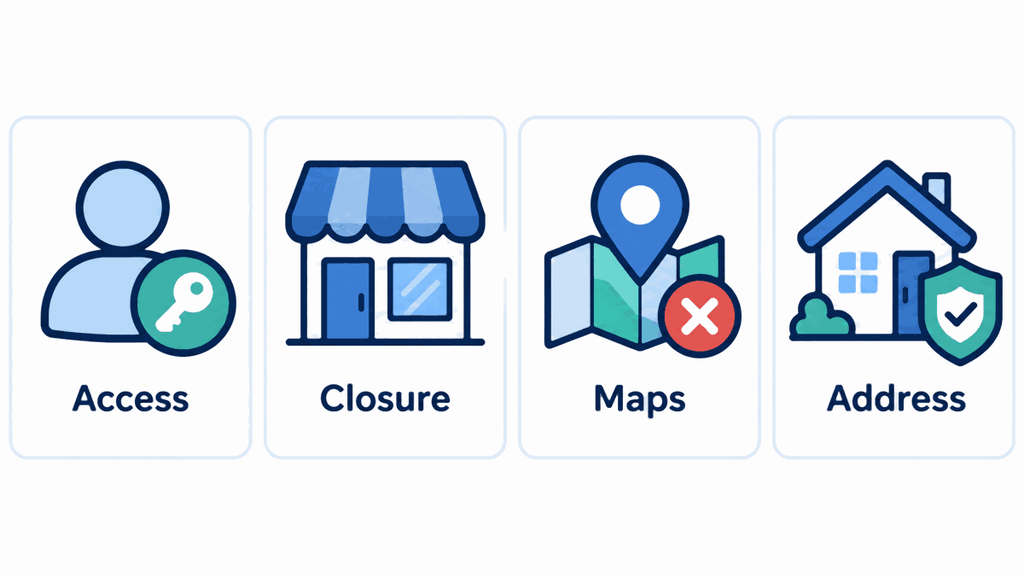
If you are searching for “how to remove business from google,” first decide what you want to change. Leaving a profile, closing a business, and removing an incorrect map listing involve different actions. Choosing the wrong one can leave the business visible while taking away your ability to manage it.
This guide explains which option fits your situation and where to find the relevant settings. Start with the outcome you need, then follow the matching steps before confirming any permanent change.
Quick Answer
To stop managing a business, remove yourself through People and access. For a closed location, update its operating status; for a nonexistent or ineligible listing, request removal through Maps. Deleting profile content and managers does not guarantee disappearance from Search or Maps.
Key Takeaways
- Decide whether your goal concerns account access, closure status, public visibility, or address privacy.
- Check your role and the exact location before changing anything.
- Transfer responsibility when a business continues under another owner.
- Save business-owned material before confirming a destructive action.
- Check the public result afterward rather than relying only on your management dashboard.
How to remove business from google: Match the Action to Your Goal
I recommend writing down your goal in one sentence before opening the settings. “I no longer manage this shop” calls for a different solution from “this shop never existed at my address.”
| Your situation | Appropriate action | What to expect |
|---|---|---|
| You are leaving a business or client account | Remove yourself from access | The business remains public |
| The business has a new owner | Transfer primary ownership | Management continues under the new owner |
| A location has stopped trading permanently | Mark it permanently closed | A closed listing can still appear |
| You want to delete owner-managed content and access | Remove profile content and managers | Public removal is not guaranteed |
| A business never existed or is ineligible | Request Maps removal | Google reviews the request |
| Customers do not visit your service business address | Hide the address using eligible service-area settings | The business can remain discoverable |
These distinctions follow Google’s separate profile access rules, closure instructions, and public removal process. Treat the available buttons as tools for specific outcomes, rather than assuming every removal option does the same thing.
Remove Yourself From a Google Business Profile
Use this route when you are leaving a job, ending an agency contract, or handing daily management to someone else. You can exit without deleting the business’s existing posts or review replies.
- Sign in to the Google Account associated with the profile.
- Open the relevant Business Profile.
- Select More, then Business Profile settings.
- Open People and access.
- Select your own user entry.
- Choose Stop managing, then Confirm.
Google’s instructions for removing yourself as an owner or manager describe this process. The primary owner must transfer primary ownership before leaving.
Transfer ownership when the business continues
If you are selling the business, follow the primary ownership transfer process. The current primary owner can assign that role to an existing owner or manager through People and access; if no other user exists, add one first.
A newly added owner or manager faces a seven-day restriction on certain actions, including ownership transfer. Plan the handover ahead of your departure so the incoming owner has accepted access and can take responsibility before you leave.
Delete Profile Content and Managers From Your Account
Use this option only after reviewing its consequences. It affects every owner and manager, rather than simply removing your own access.
Follow the account removal instructions:
- Sign in and open the correct Business Profile.
- Select More, then Business Profile settings.
- Select Remove Business Profile.
- Choose Remove profile content and managers.
- Read the confirmation notice and complete the prompts.
Only the primary owner can perform this action. Newly added owners and managers must wait seven days before certain removal actions.
Owner- and manager-added posts, photos, videos, and review replies are permanently removed. Customer reviews and other user-generated content remain, and managing the business again requires re-verification. Save anything you need before confirming.
Mark a Business as Permanently Closed
For a genuine business that has stopped operating, an accurate closure label helps customers avoid wasted journeys. Follow the steps for marking a business closed while you still have management access.
- Open your Business Profile.
- Select Edit profile, then Hours.
- In Business hours, select the edit control beside Hours.
- Choose Permanently closed.
- Select Save.
A closed profile can still appear in searches. Check its status label to confirm the update.
For example, a bakery that closes for good should accurately show that it no longer trades. Calling it a business that never existed would misdescribe its history and the reason for your edit.
What if the closure is temporary?
Use Temporarily closed for seasonal, indefinite, or longer-than-seven-day closures. Use special hours for seven days or less.
The status does not hide your listing. Correct it when the business reopens.
Request Removal From Google Maps and Search
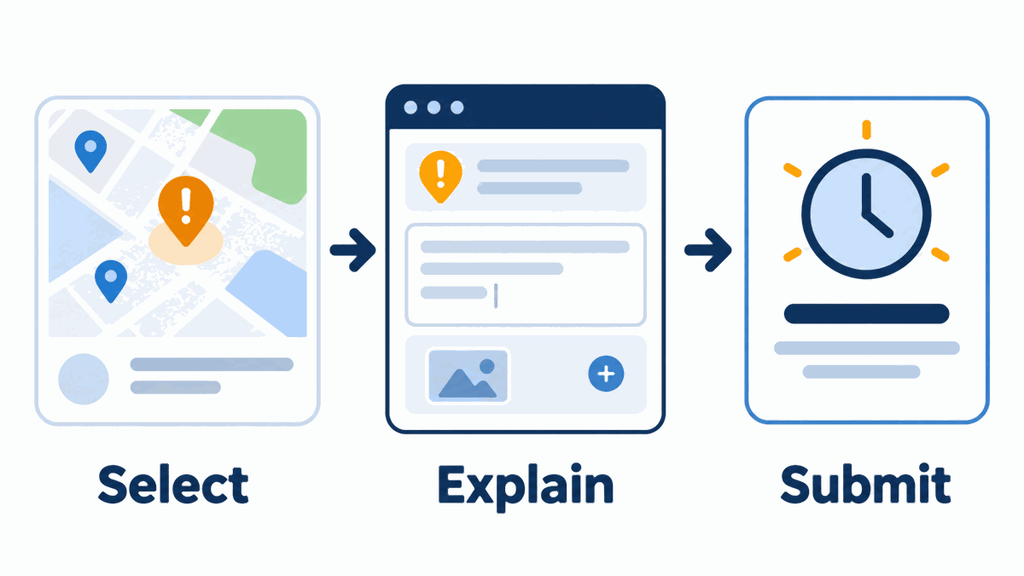
Use Google’s listing removal request process when the business never existed or is not eligible for a profile. You can submit a request even if you do not own the listing.
- Sign in to your Google Account and open Google Maps or its mobile app.
- Find and select the exact business listing.
- Select Suggest an edit.
- Choose Place is closed or not here.
- Select the option that accurately describes the problem.
- Submit the request.
Choose an accurate reason, such as Doesn’t exist here. Google reviews requests, and approval removes the listing from Search and Maps.
Before submitting, record the listing’s name, address, and the specific error you found. This gives you a clear reference if you need to explain the issue later or distinguish it from another business nearby.
Fix Duplicate Listings, Relocations, and Address Privacy
Many removal requests begin with a problem that an edit or ownership correction can solve. Identify what is inaccurate before choosing a destructive setting.
Duplicate profiles
If the same business has more than one profile, follow the duplicate profile resolution guidance. A mistaken duplicate you created can be removed, while a merger request may be appropriate when existing profiles represent the same business.
Google reviews merger requests, and review replies may be lost even when reviews combine. If someone else controls the existing verified profile, request access rather than creating another entry for the same business.
A business that moved
For a continuing business, start by updating its business address. Review the map pin as well as the written address, because customers need directions to the correct entrance.
Also audit other listing services after a move. The guide to adding and managing a business on Apple Maps explains another place to check your customer-facing information.
A home address you do not want displayed
If customers do not visit your address and your business qualifies as a service-area business, you can hide the street address. Open Edit profile, select Location, edit Business location, turn off Show business address to customers, and save.
Google’s address visibility instructions limit this option to service-area businesses. It keeps the profile available while displaying a service area instead of the street address.
Check the Location and Responsibility Before Making Changes
For a company with several branches, verify which location is closing and who approved the change. A closure decision for one branch should not become an accidental instruction to remove unrelated profiles.
If responsibility is split across regions or services, understanding how business units divide operational responsibility can help you identify the right internal decision-maker. Keep that organizational decision separate from the permissions attached to your Google Account.
Before acting, I would check these details:
- The exact business name and street address.
- Whether you are the primary owner, another owner, or a manager.
- Whether the business is closing, moving, or changing hands.
- Whether anyone else still needs access.
- Whether you have saved your business-owned photos and essential records.
Troubleshooting: Why Is the Business Still Visible?
First, compare the action you completed with the outcome you expected. Account access, operating status, and public listing eligibility are separate issues, so check each one individually.
Leaving your account does not hide the business. For a closed location, check its label.
Check request status messages and follow-up questions. Google gives no guaranteed removal deadline.
If your real concern is a review, use the review reporting process. Google removes reviews that violate its policies, rather than reviews a business simply dislikes; you can track a report in the Reviews Management Tool and use the available appeal process.
Frequently Asked Questions
How do I remove myself from my Google business account?
Open Business Profile settings, select People and access, choose your user entry, and select Stop managing. If you are the primary owner, transfer that role before leaving so another person can continue managing the business.
How do I remove a permanently closed business on Google?
A genuine closed business can remain visible. Report qualifying inaccuracies through the appropriate Maps edit.
Can I delete a Google Business Profile and start over?
Avoid creating a replacement profile for the same business just to get a fresh start. Google has duplicate-profile rules, so correcting the existing entry or resolving ownership is usually the appropriate starting point.
Can I remove a business listing that I do not own?
Yes, ownership is not required to request Maps removal. Google reviews your stated reason.
How do I remove a website from my Google business account?
If you mean the website link displayed on your Business Profile, open Edit profile, find the website field, remove or correct the link, and save. Changing that field is separate from removing the profile, deleting the website itself, or removing its pages from Google Search.
Conclusion
Learning how to remove business from google starts with choosing the outcome you actually need. Review your account role, business status, and listing accuracy before confirming a change.
Open the correct profile and use the matching steps above. Then check what a customer sees, and keep a record of the update or request so you can follow up clearly if needed.