Why is my Business not showing up on Google? Causes and Fixes
If you are asking “why is my business not showing up on Google,” start by checking what is missing: your business listing, your website, or a place among the top results. Your Business Profile may need verification or have a restriction, while your website may have an indexing problem. A business that appears by name but disappears for a service search may simply rank below competitors.
I would check those possibilities before changing your website or creating another listing. This guide helps you identify the issue, choose the right fix, and understand which delays need patience and which need action.
Quick Answer
Your business may not appear because its Google Business Profile has not completed verification, is suspended, is marked as a duplicate, or does not meet eligibility rules. Your website can also be missing because Google has not indexed it or cannot access important pages.
If customers can find your business by its exact name, but not through searches such as “electrician near me,” investigate local ranking instead. Being verified and being highly ranked are different outcomes, so one fix will not solve every visibility problem.
Key Takeaways
- Check Google Search, Google Maps, and your website separately.
- Use your exact business name and city before testing broad service searches.
- Follow the verification methods offered for your profile.
- Resolve restrictions and ownership problems before creating another listing.
- Use Search Console to investigate missing website pages.
- Accurate information helps visibility, but no one can guarantee a top local position.
Why is my business not showing up on Google? Identify the Symptom
“Not showing up” can mean several things, and each points toward a different investigation. A missing Maps listing does not automatically mean your website has disappeared from Google.
Use this table to decide where to start. Treat each explanation as a possibility to check, rather than a diagnosis based on one search.
| What you notice | What to investigate | First action |
|---|---|---|
| No profile appears for your business name and city | Verification, eligibility, restrictions, or a missing profile | Check the managing account and profile status |
| Your listing appears by name but not by service | Local relevance, distance, and competition | Review the category and compare searches from relevant locations |
| Your website appears, but your listing does not | Business Profile issues | Check verification, restrictions, and duplicates |
| Your listing appears, but your website does not | Website indexing or organic ranking | Inspect the homepage in Search Console |
| You see owner controls, but customers cannot find the listing | Public availability may differ from the management view | Test separately while signed out |
| A previously visible business suddenly disappears | Recent edits, restrictions, duplicates, or website changes | Review notifications and the change history |
Search Like a Customer, Then Check as the Owner
Search your exact business name plus city in both Search and Maps. Then try your main service plus the location where customers actually need it, and record whether the website and listing appear.
For the owner check, sign in to the account associated with your profile. Google’s instructions for finding your Business Profile explain how to locate it through Search or Maps. A signed-out or private-window check helps separate management controls from the customer view, although it does not remove location effects.

Check Your Business Profile Verification
An unfinished verification process is an important place to start when your listing is missing. Creating a profile or entering its details does not necessarily mean the verification review is complete.
Open the profile using the correct Google account and look for a verification prompt, pending review, or a request for additional information. Follow the status you actually see instead of assuming that receiving a code completed every stage.
How to Verify My Business on Google
The current business verification instructions explain that Google determines which methods are available. Depending on the business, these may include video recording, phone or text, email, live video, or mail, and more than one method may be required.
Use this sequence:
- Find your existing business profile before adding another.
- Confirm that you are authorized to manage the business.
- Select the available verification option.
- Provide the requested evidence or complete the offered process.
- Check the status and respond to any additional requests.
For video verification, prepare to demonstrate the location, business operations, and your authority to manage it. Follow the instructions for the specific video method offered rather than uploading an unrelated promotional clip.
If mail verification is offered, avoid changing the business name, address, or category while waiting for the code. Google warns that those changes can invalidate it, and requesting a replacement code can extend the process.
Confirm That Your Business Is Eligible
A Business Profile is designed for eligible businesses that interact with customers in person, with specified exceptions. An online-only business generally does not qualify, even though its website can appear in ordinary search results.
Review the business eligibility requirements before trying to solve a profile problem through repeated submissions. Eligibility and website indexing are separate matters, so an ineligible listing does not prevent you from working on your website’s search visibility.
Use the Correct Address Setup
If customers visit your premises, the address should represent a real customer-facing location that meets the applicable rules. If you travel to customers and do not receive them at your base, use the appropriate service-area setup and hide the address from the public.
The business representation and address guidelines restrict remote mailboxes and ineligible virtual offices. Shared workspaces have specific conditions, including customer reception, signage, and staffing.
For example, a cleaner working from home should not present that home as a walk-in cleaning shop when customers are served elsewhere. The profile should describe how the business actually operates, rather than how the owner hopes to rank.
Look for Suspensions, Duplicate Profiles, and Ownership Issues
If your business used to appear and suddenly stopped, check notifications before making cosmetic edits. Review both the managing account and its email for a restriction, verification request, or duplicate notice.
A loss of account access is also different from a loss of public visibility. Search for the listing as a customer before concluding that it has been removed.
Resolve a Suspension Through the Appeal Process
First, review the profile for policy problems and correct inaccurate information. Then follow the suspended-profile appeal instructions, preparing supporting evidence before opening the evidence form.
Helpful documents can include business registration, a license, tax certificates, or utility bills matching the profile’s name and address. If you open the evidence form, Google requires submission within 60 minutes for the evidence to be attached to the appeal.
Warning: Do not create another Business Profile for the same business while an appeal is under review.
Recover Access or Resolve a Duplicate
A former employee, agency, or previous owner may already manage the existing profile. Request access through the appropriate ownership route rather than creating a competing entry.
Google’s duplicate-profile and ownership guidance states that profiles marked as duplicates do not appear in Search or Maps. Distinct eligible businesses can share an address, so check the identities carefully before deleting or merging anything.
Check Whether Google Has Indexed Your Website
Your website and Business Profile can appear independently. A missing homepage or service page therefore needs its own investigation, even when your Maps listing works.
Indexing means Google has added a page to its searchable collection. It does not mean that page will rank highly for every relevant query.
Use Search Console for the Most Useful Check
Set up access to Search Console and inspect the exact homepage or service-page address. The website indexing and inspection guidance explains which reports reveal indexing problems, manual actions, and security issues.
Check the missing page individually, since an indexed homepage does not prove that every service page is indexed. Also distinguish the stored indexing status from a live test, which checks the page’s current accessibility.
Common things to investigate include:
- An accidental
noindexinstruction. - Crawl restrictions affecting important pages.
- Server errors, broken redirects, or a login requirement.
- A canonical setting pointing to a different page.
- Important pages that are difficult to reach through internal links.
- Discovered or crawled pages that Google has not selected for indexing.
A site: search using your domain can provide a quick clue, but it is not a complete indexing report. Google’s explanation of site-search limitations recommends URL Inspection when a page does not appear.
Fix the Cause Before Requesting Indexing
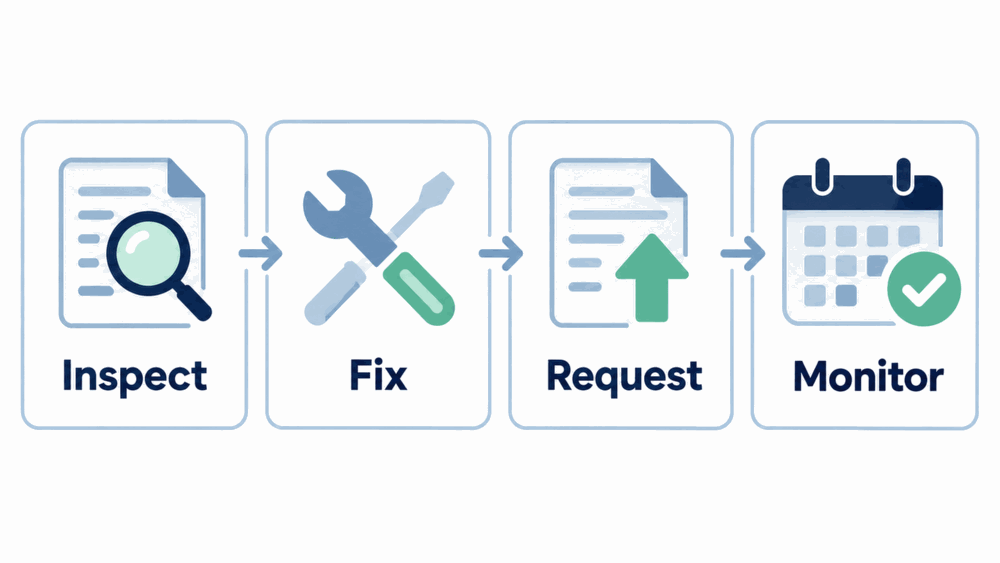
Correct the relevant access or content issue, then test the page again. Request indexing for important affected pages and submit a sitemap when appropriate.
Google’s recrawling guidance says crawling can take days to weeks and inclusion is not guaranteed. Repeated requests for the same page will not make it get crawled faster.
Improve Visibility When Your Business Already Appears by Name
If customers can find your listing by name, its absence from a broad service search does not automatically indicate a technical failure. Your business may be competing with listings that better match that particular search or are closer to the searcher.
Google’s local ranking guidance identifies relevance, distance, and prominence as key considerations. That gives you a useful framework for deciding which improvements are realistic.
Make the Business Easy to Understand
Choose categories that accurately describe your core business and keep your services, customer-facing hours, and contact details current. Your linked website should clearly explain what you do and which customers or locations you serve.
For a hypothetical mobile groomer, a service page could explain appointment requirements, available grooming services, and actual coverage areas. That information is more useful to a potential customer than a page repeating “best groomer” without explaining the service.
Account for the Searcher’s Location
A search from near your business may produce different results from one across town. Test relevant locations and queries before deciding that your business has disappeared everywhere.
Keep your service areas accurate, but do not assume that adding more cities guarantees visibility in those places. Google still considers distance and other ranking factors.
Build Trust Without Manipulating Reviews
Invite genuine customers to share honest feedback and respond helpfully to reviews. Use authentic photos that help people recognize the location, team, or services.
Google’s review and contribution policies prohibit fake engagement and incentivized reviews. There is no magic review count that guarantees a top position, and buying reviews creates additional risk.
How Long Does It Take for a Business to Show Up on Google?
The answer depends on which stage you are waiting for. Verification review, information updates, website crawling, and competitive rankings follow different processes.
Use these published timeframes as guidance. None promises that your business will reach the first page on a specific date.
| Process | Published guidance | What to do |
|---|---|---|
| Verification review after completing the steps | Up to five business days, with longer reviews possible | Monitor the status and respond to requests |
| Changes to business information appearing in results | Can take up to three days | Check the saved details and public view |
| Rankings for a new business | Can take up to a month to appear | Confirm verification and maintain accurate information |
| Website recrawling | Can take days to weeks | Fix problems, request a crawl appropriately, and monitor |
| Reaching a competitive local position | No guaranteed deadline | Improve relevance and trust, then measure progress |
The verification timeframe comes from the verification guidance linked above, while the profile-update and new-business guidance appears in the instructions for finding your profile. Website crawling follows its own process, so waiting for one stage does not resolve a problem in another.
What to Do If the Problem Continues
Keep a short record of your business name, profile status, affected searches, recent changes, and submitted requests. Include screenshots where useful, but avoid sharing passwords or verification codes.
For a profile issue, follow the support route attached to the relevant status or appeal. For a website issue, ask your developer to investigate the specific Search Console finding rather than requesting a general redesign.
While you resolve the Google issue, maintain other ways for customers to find you. For local discovery, adding your business to Apple Maps gives you another listing to manage, and tagging a business on Facebook can make relevant recommendations easier to follow.
Keep those destinations accurate and test their customer links. They support customer access while you troubleshoot, although they do not guarantee a Google ranking improvement.
Frequently Asked Questions
Why is my business not visible to customers even though I can manage it?
Owner controls show that you have access to management features, but they are not proof of public availability. Check the verification status, restrictions, and pending changes, then test the listing separately while signed out.
How can I find my business on Google without being signed in?
Search your exact business name and city in both Search and Maps. If several businesses share the name, compare the address and phone number before deciding which result is yours.
Why is my Google business not showing up after verification?
Check for a further verification request, a restriction, or a duplicate designation. Also test the exact business name, since a verified listing may exist without ranking prominently for a broad service search.
Can I show up on Google without a website?
An eligible business can have a Business Profile without its own website. A useful website provides another route for customers to understand your services, but it is separate from profile eligibility and verification.
Does Google charge to list my business?
A standard Business Profile is free, while advertising and optional third-party services may cost money. Google also states that you cannot request or pay for a better local ranking, so distinguish advertising offers from promises about unpaid placement.
Why does my business show on Maps but not as a website result?
Maps visibility comes from your business listing, while a website result depends on the relevant page being indexed and selected for the search. Inspect the website page in Search Console instead of changing a working listing to solve a website issue.
Conclusion
Answering “why is my business not showing up on Google” starts with identifying which result is missing. Check the public listing, review its status, and inspect your website separately before choosing a repair.
Start today with an exact-name search in Search and Maps, then check the relevant profile or website report. Record what you find and fix the first confirmed issue, giving you a clear next step instead of another round of guesswork.