How to Use QuickBooks for Small Business: The Complete Step-by-Step Guide
You didn’t start your business because you love bookkeeping. Nobody does.
You started it because you’re good at something (baking, plumbing, designing, consulting) and you wanted to turn that into a living. Then tax season showed up, and a customer asked for an invoice you didn’t know how to send. And suddenly you’re googling spreadsheet templates at 11 p.m.
That’s the moment most small business owners discover QuickBooks.
This blog post will tell you everything about “how to use QuickBooks for small business” operations from day one. It will include setup, invoicing, expenses, payroll, reports, and the mistakes that quietly cost owners hundreds of hours every year. I’ve pulled in real data, official Intuit resources, and practical fixes you won’t find in most “QuickBooks Pro Tutorial” posts floating around Google right now.
If you’re also figuring out the money side of running your company beyond bookkeeping, my guide on how to pay yourself as a business owner LLC pairs well with this one. QuickBooks tracks the money, and the guide tells you how to actually take some of it home.
So, without wasting time, let’s get into the main topic:
Why QuickBooks Still Dominates Small Business Bookkeeping
Here is a number that should get your attention: about 20% of small businesses fail in their first year. Around 50% close within five years. This data comes from small business accounting firms and the U.S. Small Business Administration.
One of the biggest reasons is cash flow problems. Many business owners struggle to track the money coming in and going out.
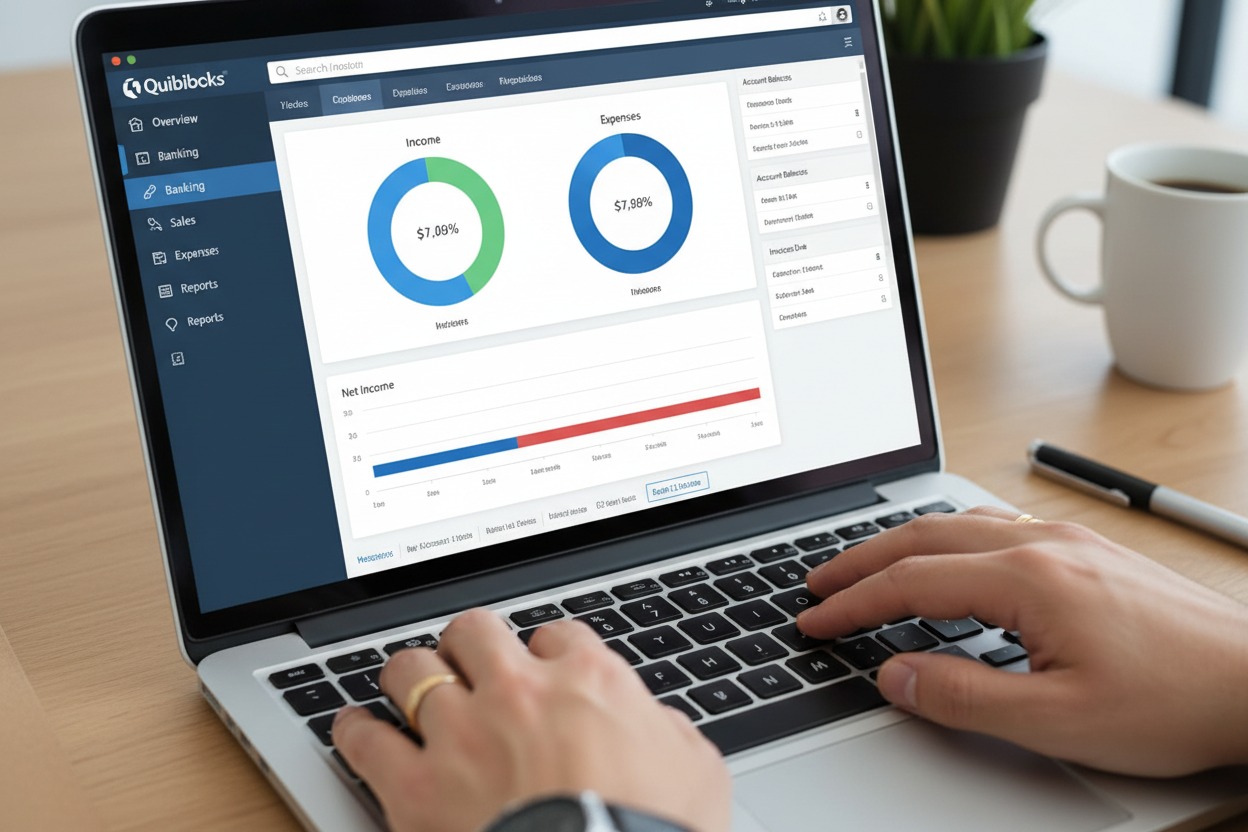
QuickBooks, made by Intuit, is built to fix exactly that problem. It helps small businesses keep track of their money. Millions of businesses use it every day.
Its job is simple. It turns messy financial records into clear and useful information. It can organize bank statements, receipts, and invoices. This makes it easier to understand your finances and make better decisions.
It’s not just a place to store numbers. It’s a system that:
- Tracks income and expenses automatically
- Sends and manages invoices
- Runs payroll and calculates taxes
- Reconciles your bank accounts
- Generates reports for loans, taxes, and decision-making
According to Intuit’s own customer data, businesses using QuickBooks with its AI-powered features report saving an average of 13 hours a month. And it is also growing revenue by around 18% on average. Even if your results look different, the direction is clear. You will have less time for data entry and more time to run the business.
QuickBooks Online vs. QuickBooks Desktop: Which One Should You Actually Use?
This is the first fork in the road, and it trips up more beginners than anything else. Before you search for “QuickBooks desktop training” or “set up QuickBooks,” decide which version fits your business.
| Feature | QuickBooks Online | QuickBooks Desktop |
|---|---|---|
| Access | Cloud-based, any device, anywhere | Installed on one computer |
| Pricing | Monthly subscription | One-time license or annual subscription |
| Updates | Automatic | Manual, less frequent |
| Mobile app | Full-featured | Limited |
| Integrations | 800+ third-party apps | Fewer, more limited |
| Best for | Service businesses, freelancers, and remote teams | Businesses needing heavy inventory or industry-specific tools |
| Multi-user access | Built-in, cloud-based permissions | Requires network setup |
Most small business owners today choose QuickBooks Online because it’s flexible, updates automatically, and works on your phone at a job site or coffee shop. QuickBooks Desktop still makes sense for businesses with complex inventory needs or industries that rely on deep, install-based reporting.
If you want a side-by-side comparison straight from the source, Intuit’s own QuickBooks product page breaks down every plan currently offered.
QuickBooks Online Plans (Quick Breakdown)
- Simple Start. It is best for solo owners just starting to track income and expenses
- Essentials. It adds multiple users and bill management
- Plus. This adds inventory tracking and project profitability
- Advanced. This advanced plan is built for growing teams that need deeper reporting and automation
Don’t buy the cheapest plan just to save a few dollars. Businesses that pick a plan without inventory or multi-user access often end up migrating mid-year, which means re-entering months of data. Pick the plan that matches where your business will be in 12 months, not just today.
How to Set Up QuickBooks for a Small Business (Step by Step)
This is the part most “how to set up QuickBooks” guides rush through. Slow down here. A clean setup saves you dozens of hours later.
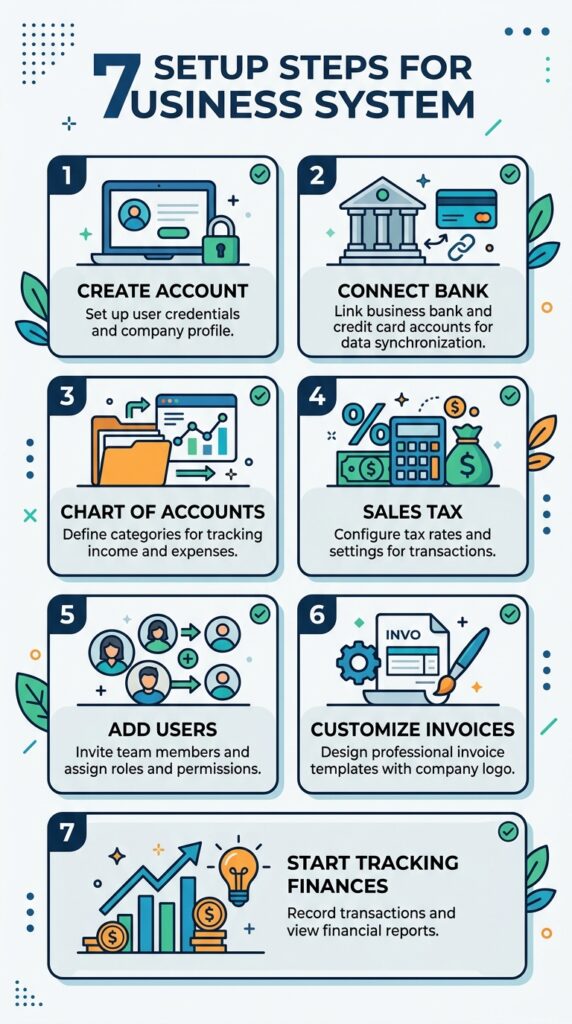
Step 1: Create Your Account and Choose Your Plan
Go to the QuickBooks sign-up page, pick your plan, and enter your business name, industry, and legal structure (sole proprietor, LLC, S-corp, etc.). If you haven’t settled on a business structure yet, that decision affects your taxes and how you’ll eventually pay yourself. So it’s worth locking down early.
Step 2: Choose Business View or Accountant View
QuickBooks lets you pick between two layouts:
- Business view. This layout is simplified, built for owners with little accounting background
- Accountant view. And this layout includes traditional ledgers and charts, built for bookkeepers and accountants
If you’re new to bookkeeping, start with a business view. You can always switch later.
Step 3: Connect Your Bank and Credit Card Accounts
This step alone eliminates most manual data entry. Go to Banking > Link Account, and connect every account your business actually uses (checking, savings, credit cards, and payment processors like PayPal or Stripe).
Quick fix most guides skip: only connect dedicated business accounts. If you’re still using a personal card for business purchases, that habit creates messy books and makes tax time painful. Open a separate business account first, then connect it.
Step 4: Build Your Chart of Accounts
Your Chart of Accounts is the backbone of your bookkeeping. It’s the categorized list of everything your business owns, owes, earns, and spends.
QuickBooks gives you a default chart of accounts based on your industry, but you should review it:
- Go to Accounting > Chart of Accounts
- Review the default categories (income, expenses, assets, liabilities)
- Add categories specific to your business (e.g., “Software Subscriptions,” “Contractor Payments”)
- Remove categories you’ll never use to keep it clean
Step 5: Set Up Sales Tax (If You Sell Taxable Goods or Services)
This is one of the most commonly delayed steps, and it’s the one that causes penalties later. Even if you’re currently under a state’s sales tax threshold, enable sales tax tracking from day one inside Taxes > Sales Tax. QuickBooks will calculate rates automatically based on where you sell and to whom.
Step 6: Add Users and Set Permissions
If you have a bookkeeper, accountant, or business partner, add them under Settings > Manage Users. Assign permission levels so sensitive data, like payroll, stays restricted to people who actually need it.
Step 7: Customize Invoices and Payment Methods
Go to Settings > Custom Form Styles to add your logo, brand colors, and payment terms. Then connect a payment processor so customers can pay directly on the invoice via ACH transfer, debit card, credit card, or digital wallet.
How to Use QuickBooks for Day-to-Day Bookkeeping
Getting started is the first step. This section covers the tasks you should do every week to keep your records accurate.
Many people searching for how to use QuickBooks for a small business are looking for these daily and weekly habits. Following them makes bookkeeping easier and helps you avoid mistakes.
Recording Income and Expenses
Once your accounts are linked, QuickBooks automatically pulls in transactions. Your job is to review and categorize them:
- Go to Banking > For Review
- Confirm the category QuickBooks suggests, or correct it
- Click Add to move it into your books
The more consistently you categorize, the smarter QuickBooks’ automatic suggestions get over time.
Creating and Sending Invoices
- Go to Sales > Invoices > New Invoice
- Select the customer (or add a new one)
- Add line items, quantities, and prices
- Set payment terms (Net 15, Net 30, due on receipt)
- Attach a “Pay Now” button so customers can pay electronically
- Send directly from QuickBooks or download as a PDF
Pro tip: turn on automatic payment reminders under invoice settings. Late payments are among the top cash-flow killers for small businesses, and a simple automated nudge can recover a surprising amount of overdue revenue.
Weekly Bookkeeping Routine (This Is the Part People Skip)
A lot of guides tell you to categorize transactions “regularly” without saying what that actually means in practice. Here’s a realistic weekly bookkeeping routine that takes about 30–45 minutes:
- Monday: Review and categorize last week’s bank transactions
- Wednesday: Send any outstanding invoices and follow up on overdue ones
- Friday: Check your Profit & Loss snapshot and compare it against last week’s
- Last day of the month: Reconcile every bank and credit card account
Businesses that follow this weekly routine consistently spend far less time scrambling during tax season because nothing piles up.
Managing Bills and Accounts Payable
Under Expenses > Bills, you can enter vendor bills, schedule payments, and avoid missed due dates. QuickBooks will automatically flag upcoming and overdue bills, protecting your vendor relationships and credit terms.
Reconciling Your Accounts
Reconciliation is the process of confirming that what QuickBooks shows matches what your bank shows. Go to Accounting > Reconcile, select the account and statement date, and match transactions line by line. Do this monthly. It’s the single biggest habit that prevents errors from snowballing.
Managing Inventory Inside QuickBooks
If you sell physical products, inventory tracking is where QuickBooks starts to earn its keep beyond basic bookkeeping.
Under Sales > Products and Services, you can mark an item as “inventory tracked,” which lets QuickBooks automatically reduce your stock count when you record a sale and increase it when you record a purchase. This one setting alone removes a huge chunk of manual spreadsheet work for product-based businesses.
A few things worth setting up right away:
- Reorder points. QuickBooks flags items when stock drops below a level you set, so you’re not caught out of stock mid-season
- Cost tracking. Enter your cost per unit so QuickBooks can calculate gross profit automatically on every sale
- Bundles. If you sell products as kits (say, a gift set or starter bundle), you can bundle individual items so inventory still tracks correctly behind the scenes
QuickBooks Online Plus and Advanced plans offer full inventory tracking. Simple Start and Essentials do not. This is important to consider when choosing your plan.
If your product business deals with custom or handmade goods, the inventory tips here are very similar to those in my guide on starting a sticker business. Tracking material costs compared to the sale price is what turns a hobby into a profitable shop.
QuickBooks Training Resources: Books, Courses, and Free Tutorials
A lot of people search for a “QuickBooks Pro tutorial” or a “QuickBooks book” because the software has a learning curve, especially in the first few weeks. You don’t need to buy an expensive course to get comfortable. Here’s a realistic path:
Free resources:
- Intuit’s own QuickBooks Tutorials walk through every feature by plan type, updated as the software changes
- The in-app Help button inside QuickBooks links directly to walkthroughs relevant to whatever screen you’re on
- QuickBooks Community forums, where real bookkeepers answer specific setup questions
Paid training (worth it if you’re setting up for a team):
- Structured courses through community colleges or platforms like Coursera, often built around QuickBooks certification
- A single paid session with a QuickBooks ProAdvisor to review your setup, which is often more valuable than a full course if your business is straightforward
Books: If you prefer reading over video, look for the most recent edition of a QuickBooks guidebook rather than an older one — the interface and features change often enough that a book published even two or three years ago can be showing you screens and menus that no longer exist. Always check the publication year before buying.
The honest truth: most small business owners learn QuickBooks fastest simply by using it weekly and looking up the specific thing they’re stuck on, rather than sitting through a full course upfront. Treat tutorials as a reference, not a prerequisite.
Creating Estimates and Managing Quotes
Before issuing an invoice, many small businesses, especially service-based ones like contractors, consultants, and freelance designers, need to send a quote first. QuickBooks handles this under Sales > Estimates.
- Create an estimate the same way you’d build an invoice, with line items and pricing
- Send it to the customer for approval
- Once approved, convert it directly into an invoice with one click, so you’re not re-entering the same information twice
This small workflow detail saves real time for businesses that regularly quote jobs, and it keeps a paper trail showing exactly what was agreed to before work started. It is useful if a customer later disputes pricing.
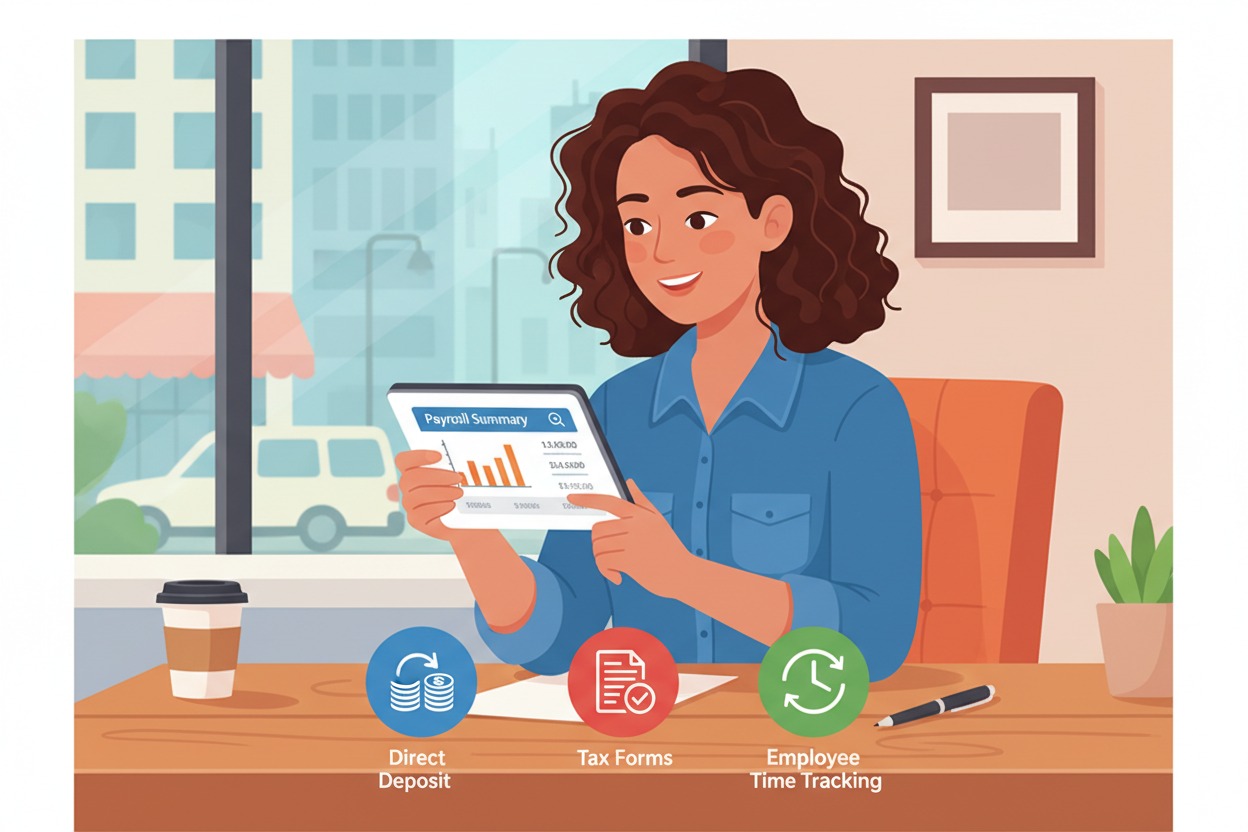
Running Payroll Inside QuickBooks
If you have even one employee, payroll accuracy matters. Mistakes here lead to penalties and unhappy employees, not just accounting headaches.
QuickBooks Payroll (available as an add-on) handles:
- Calculating gross pay, taxes, and deductions automatically
- Direct deposit or printed checks
- Federal and state payroll tax filings
- W-2 and 1099 generation at year-end
- Time tracking that flows directly into payroll
To set it up, go to Payroll > Get Started, add your employees’ information, set pay schedules, and connect your business bank account for direct deposit. QuickBooks’ payroll engine automatically updates for changing tax rates, which matters because federal and state payroll tax rules shift often enough that manual tracking becomes risky.
QuickBooks Reports Every Small Business Owner Should Actually Read
This is the part that turns QuickBooks from a filing cabinet into a decision-making tool. Most beginners never open the Reports tab beyond tax season. That’s a mistake.
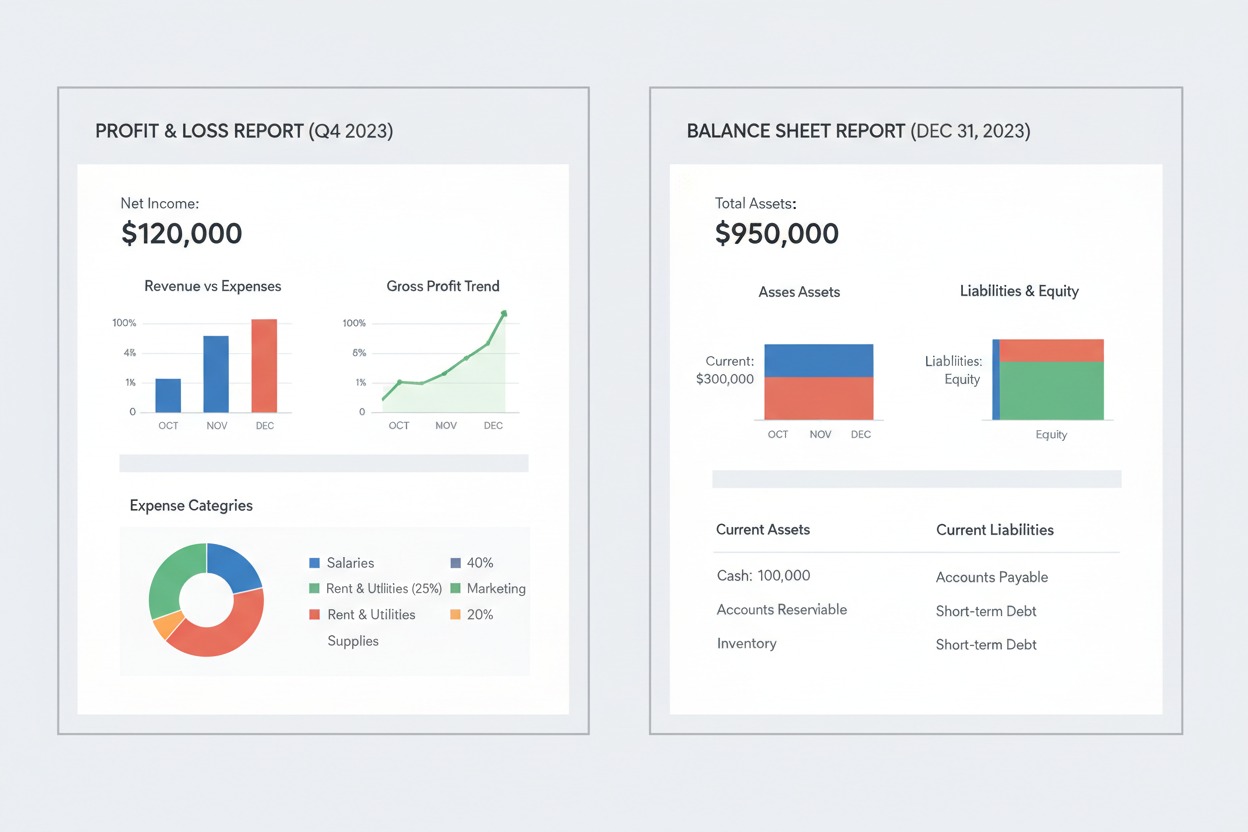
The Three Reports That Matter Most
1. Profit & Loss (P&L) Statement: Shows your income minus expenses over a chosen period. Check this weekly or monthly to catch problems early, not in April.
2. Balance Sheet shows what your business owns (assets), owes (liabilities), and what’s left over (equity) at a single point in time. Lenders and investors will ask for this.
3. Cash Flow Statement shows the actual cash moving in and out — separate from profit on paper. A business can be “profitable” and still run out of cash if customers pay late. This report catches that gap before it becomes a crisis.
To access any of these, go to Reports, select the report name, then customize the date range and filters to match your needs.
Turning Reports Into Decisions
Reports are only useful if you act on them. A few practical examples:
- If your P&L shows a category creeping up month over month (say, software subscriptions), that’s your cue to audit what you’re actually paying for.
- If your Balance Sheet shows liabilities growing faster than assets, it’s time to slow down spending or renegotiate payment terms.
- If your Cash Flow Statement shows a seasonal dip, plan ahead for it instead of scrambling when it hits.
QuickBooks Live, ProAdvisors, and Getting Expert Help
If you’d rather not do all of this alone, Intuit offers QuickBooks Live, a service that connects you with a bookkeeping expert who reviews your books, answers questions, and helps you stay tax-ready year-round. It’s a middle ground between doing everything yourself and hiring a full-time bookkeeper.
You can also work with a QuickBooks ProAdvisor. An independently certified expert who can:
- Set up and customize your account correctly the first time
- Train you or your team on the software
- Clean up messy books from a previous system
- Provide ongoing bookkeeping or payroll support
If your business is growing fast, has multiple revenue streams, or you’re just starting and feel overwhelmed, a few hours with a ProAdvisor upfront can save you from expensive setup mistakes down the line. The same way getting your business structure right early saves headaches later, which is exactly why I wrote a full breakdown on how to pay yourself as a business owner LLC. The two decisions (how you’re structured and how you track money) are connected more than people realize.
Common QuickBooks Mistakes Small Business Owners Make (And How to Fix Them)
Most “how to use QuickBooks for small business” articles list generic tips. Here’s what actually trips people up, based on patterns observed across small-business accounting forums, CPA blogs, and QuickBooks’ own support community.
| Mistake | Why It Hurts | The Fix |
|---|---|---|
| Mixing personal and business expenses | Makes tax deductions messy and audit risk higher | Open a dedicated business account and card |
| Skipping monthly reconciliation | Errors compound and become hard to trace | Reconcile every account, every month, without exception |
| Not categorizing sales channels separately | You lose visibility into which product or service actually makes money | Set up classes or locations for each revenue stream |
| Ignoring sales tax setup | Leads to penalties when you cross a state threshold | Enable sales tax tracking from day one |
| Choosing the cheapest plan | You outgrow it fast and have to migrate data | Choose a plan based on where you’ll be in a year, not just today |
| Not backing up Desktop data | Risk of losing months of records | Schedule automatic backups or switch to cloud-based Online |
| Letting invoices go unreviewed | Cash flow gaps go unnoticed until it’s a crisis | Check outstanding invoices weekly, not monthly |
A Practical Example: What This Looks Like in Real Life
Numbers are easier to understand with a scenario, so here’s a simplified example of how the weekly routine above plays out.
Say you run a small home-services company, maybe something like the HVAC business I have explained in my HVAC startup guide. You’ve got a business checking account, a fuel card, and a handful of recurring customers on maintenance contracts.
- Monday: You log into QuickBooks and see 14 new bank transactions waiting to be reviewed. QuickBooks has already sorted nine of them correctly. You confirm them with a few clicks. Then you manually fix the other five, including a supply purchase that was marked as “office supplies” instead of “job materials.”
- Wednesday: You notice two invoices from three weeks ago are still unpaid. You send a reminder directly from QuickBooks instead of tracking it down in your email.
- Friday: You check your Profit & Loss snapshot and notice fuel costs are up 20% compared to last month. That’s a flag to look at route efficiency, not just a number to ignore.
- End of the month: You reconcile your checking account and fuel card. Everything matches except one transaction, which turns out to be a duplicate charge from a vendor — caught early because you looked, not because you got lucky.
None of this takes more than an hour a week combined. But skip it for two months, and you’re looking at a backlog of 100+ uncategorized transactions, a pile of overdue invoices, and no real sense of whether the business made money last quarter. The habit is the whole point. QuickBooks just makes it fast enough to actually stick.
QuickBooks Integrations Worth Knowing About
QuickBooks connects with more than 800 third-party apps, according to Intuit, which means it can become the financial hub of your entire business rather than just a bookkeeping tool. A few integrations that matter most for small businesses:
- Payment processors: PayPal, Stripe, Square
- E-commerce platforms: Shopify, Etsy, Amazon
- Time tracking: built-in QuickBooks Time
- Tax filing: TurboTax for direct filing using your QuickBooks data
- Payroll and HR: built-in payroll or third-party HR platforms
If you’re running an e-commerce or multi-channel business, connecting these tools early prevents the manual data entry pile-up that trips up sellers as they scale across platforms.
Pros and Cons of Using QuickBooks
Being upfront about the trade-offs matters. No tool is perfect for every business.
Pros:
- Beginner-friendly interface, no accounting degree required
- Automates repetitive tasks (categorization, reminders, tax prep)
- Real-time financial visibility from any device
- Scales from solo freelancer to growing team
- Strong third-party app ecosystem
Cons:
- Monthly subscription costs add up, especially with payroll add-ons
- Can feel overwhelming during initial setup without guidance
- QuickBooks Desktop has limited mobile access
- Multi-channel sellers may eventually need extra integration tools for real-time inventory sync
- Customer support wait times can be long during tax season
Expert Tips for Getting More Out of QuickBooks
A few things that separate business owners who actually benefit from QuickBooks from those who just use it as an expensive filing cabinet:
- Automate recurring invoices. If you bill the same client monthly, set it to send automatically instead of remembering to do so every time.
- Use classes and locations to track profitability by product line, service type, or physical location. This is where real insight lives.
- Set a recurring calendar reminder for reconciliation. The businesses that stay clean are the ones that treat this like a non-negotiable appointment, not an optional task.
- Review your Chart of Accounts every quarter. Delete categories you never use. A clean chart makes reports easier to read at a glance.
- Connect with a CPA before tax season, not during it. QuickBooks makes your data accountant-ready, but a professional set of eyes catches deductions that software alone won’t.
Frequently Asked Questions
Is QuickBooks worth it for a very small business or solo freelancer?
Yes, for most solo owners, it’s worth it once you have regular income and expenses to track. The Simple Start plan is built specifically for single-person businesses that need income tracking, invoicing, and basic reporting without extra complexity.
How much does QuickBooks cost for a small business?
Pricing varies by plan and whether you add payroll, but QuickBooks Online typically ranges from a basic single-user tier up to higher-tier plans with more users and advanced reporting. Check Intuit’s current pricing page for up-to-date pricing, as it changes periodically.
Can I switch from QuickBooks Desktop to QuickBooks Online later?
Yes. Intuit provides a built-in data migration tool that moves your company file, chart of accounts, and historical transactions from Desktop to Online. It’s smoother if you do it at the start of a new fiscal year.
Do I need an accountant if I use QuickBooks?
QuickBooks handles the day-to-day tracking, but it doesn’t replace strategic tax advice. Most small businesses benefit from at least periodic reviews with a CPA or QuickBooks ProAdvisor, especially during tax season or major financial decisions.
What’s the difference between QuickBooks Online and QuickBooks Self-Employed?
QuickBooks Self-Employed is a stripped-down version built for freelancers filing a Schedule C, with a focus on mileage tracking and quarterly estimated taxes. QuickBooks Online is built for businesses that need invoicing, multiple users, and more detailed reporting as they grow.
Final Thoughts: Making QuickBooks Actually Work for You
QuickBooks isn’t magic — it’s a tool. It won’t fix a business that avoids looking at its numbers, and it won’t replace the judgment of a good accountant when big decisions come up. But used consistently, even 30 minutes a week, it turns financial chaos into something you can actually see, plan around, and grow with.
Start small: connect your accounts, build a clean chart of accounts, and commit to a weekly bookkeeping habit. The reports and confidence come after that.
If you’re building out the rest of your small business foundation(from how you’re structured to how you eventually pay yourself) take a look at my related guide on how to pay yourself as a business owner LLC, and if you’re still in the early startup phase, my step-by-step guide to starting a sticker business and HVAC business startup guide both walk through the exact kind of early bookkeeping decisions this article covers, applied to real businesses.